Introduction
PDF files are widely used for reports, assignments, resumes, and business documents. However, editing a PDF can be difficult when you do not have the original source file.
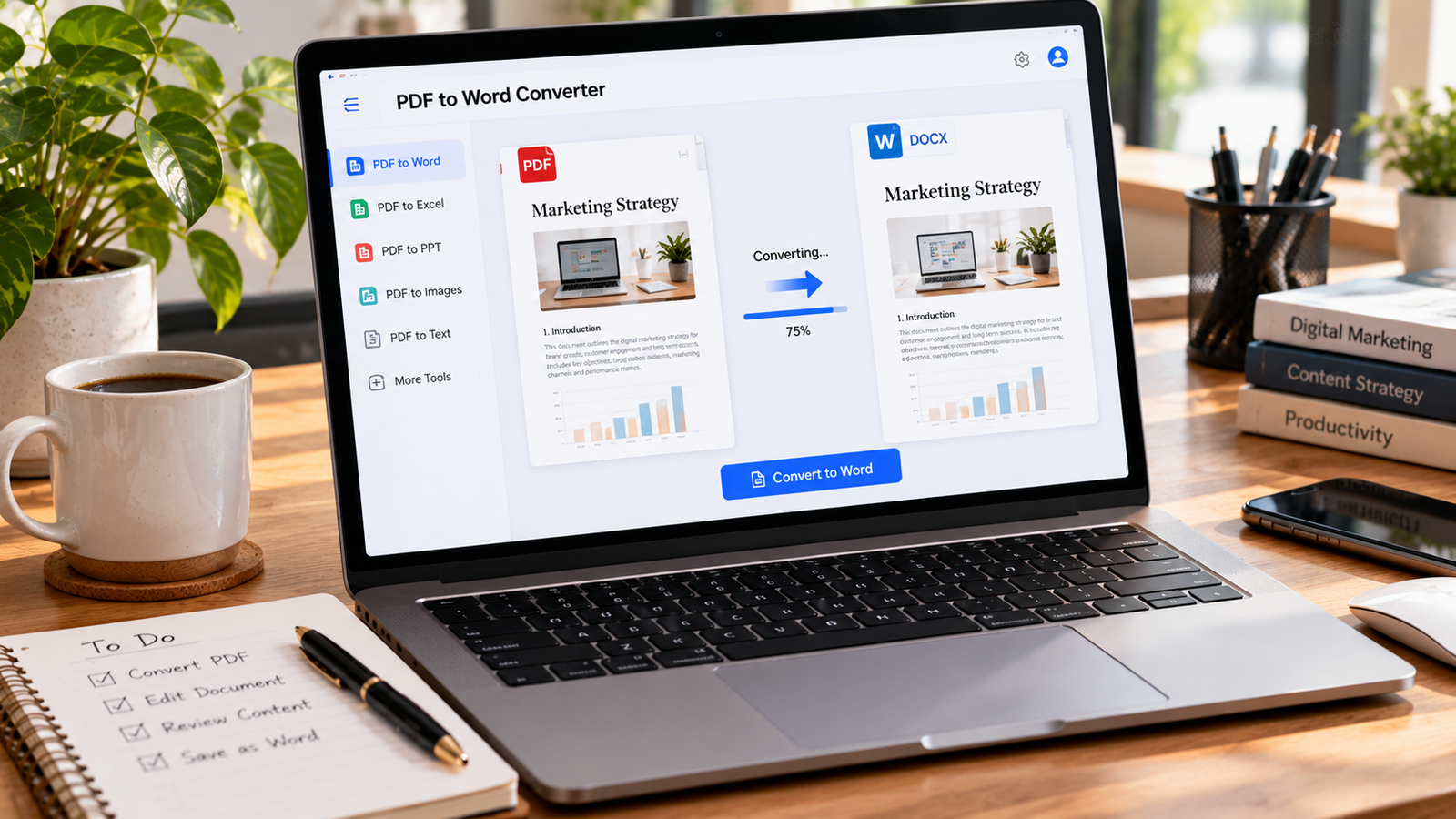
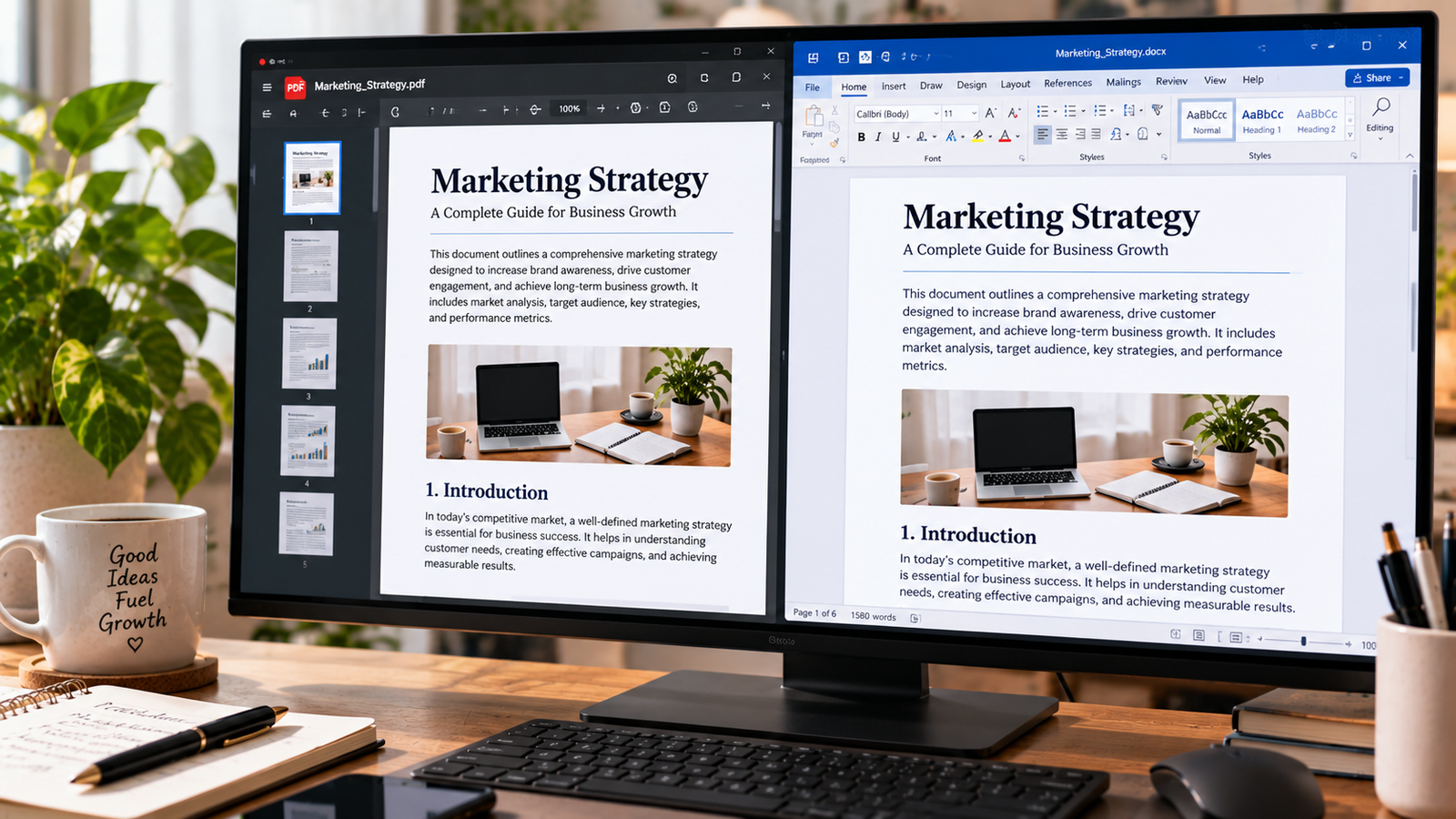
Converting a PDF into a Word document can make editing easier.
Step 1: Understand Your PDF Type
A text-based PDF usually converts more accurately than a scanned document.
Scanned PDFs contain images of pages and may require optical character recognition, commonly called OCR.
Step 2: Convert Using Microsoft Word
Open Microsoft Word, select the option to open an existing file, and choose your PDF.
Word may create an editable copy of the document.
Step 3: Check the Formatting
Review headings, tables, margins, fonts, and images.
Complex layouts may shift during conversion.
Step 4: Consider Google Docs
Upload the PDF to Google Drive and open it using Google Docs where supported.
This may extract editable text, but complex formatting can change.
Step 5: Review the Final Document
Check page breaks, bullet points, numbering, and table alignment before saving.
Step 6: Protect Sensitive Information
Avoid uploading confidential documents to unfamiliar conversion websites. Prefer trusted offline software when privacy is important.
Conclusion
Converting PDF files to Word is straightforward for simple text documents. Complex documents may need manual corrections to restore their original appearance.