
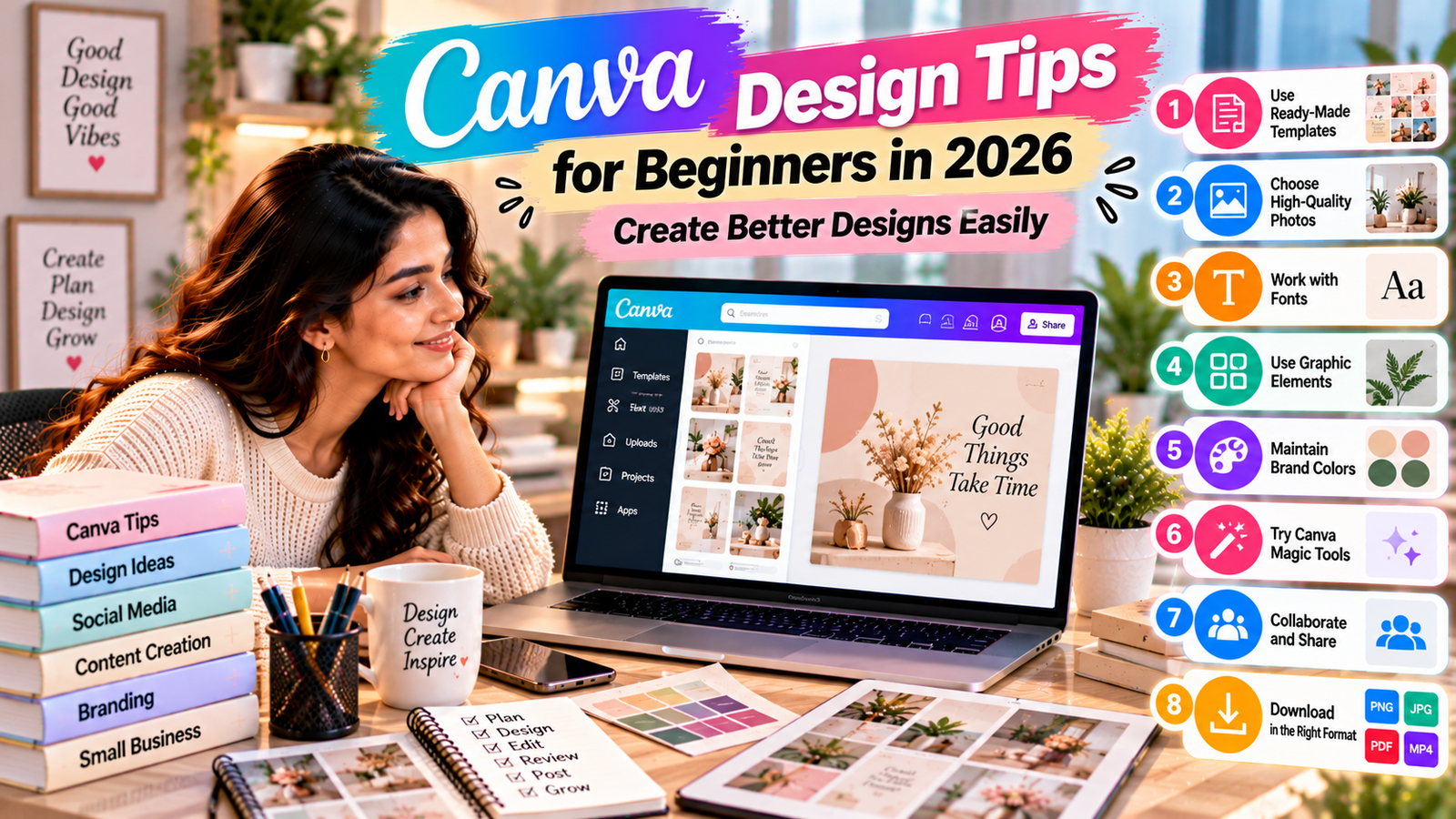
Canva Design Tips for Beginners in 2026: Create Better Designs Easily
You don’t need to be a professional graphic designer to create attractive and professional-looking designs. With Canva, beginners can create social media posts, presentations, posters, invitations, thumbnails, resumes and many other types of visual content.
However, having access to thousands of templates does not automatically mean that every design will look good. The real difference comes from knowing how to choose the right layout, colours, fonts, images and spacing.
If you are starting with Canva in 2026, these simple design tips can help you create cleaner and more professional-looking content.
1. Start With the Right Canva Size
Before designing anything, choose the correct dimensions for your content.
For example:
- Instagram Post – square or portrait format
- Instagram Story – vertical format
- YouTube Thumbnail – landscape format
- Presentation – widescreen format
- Poster – according to the required print size
Choosing the right size at the beginning saves time and prevents your design from looking cropped or stretched later.
Beginner tip: Don’t randomly resize your design after completing it. Select the format according to where you are going to use the design.
Keep Your Design Simple
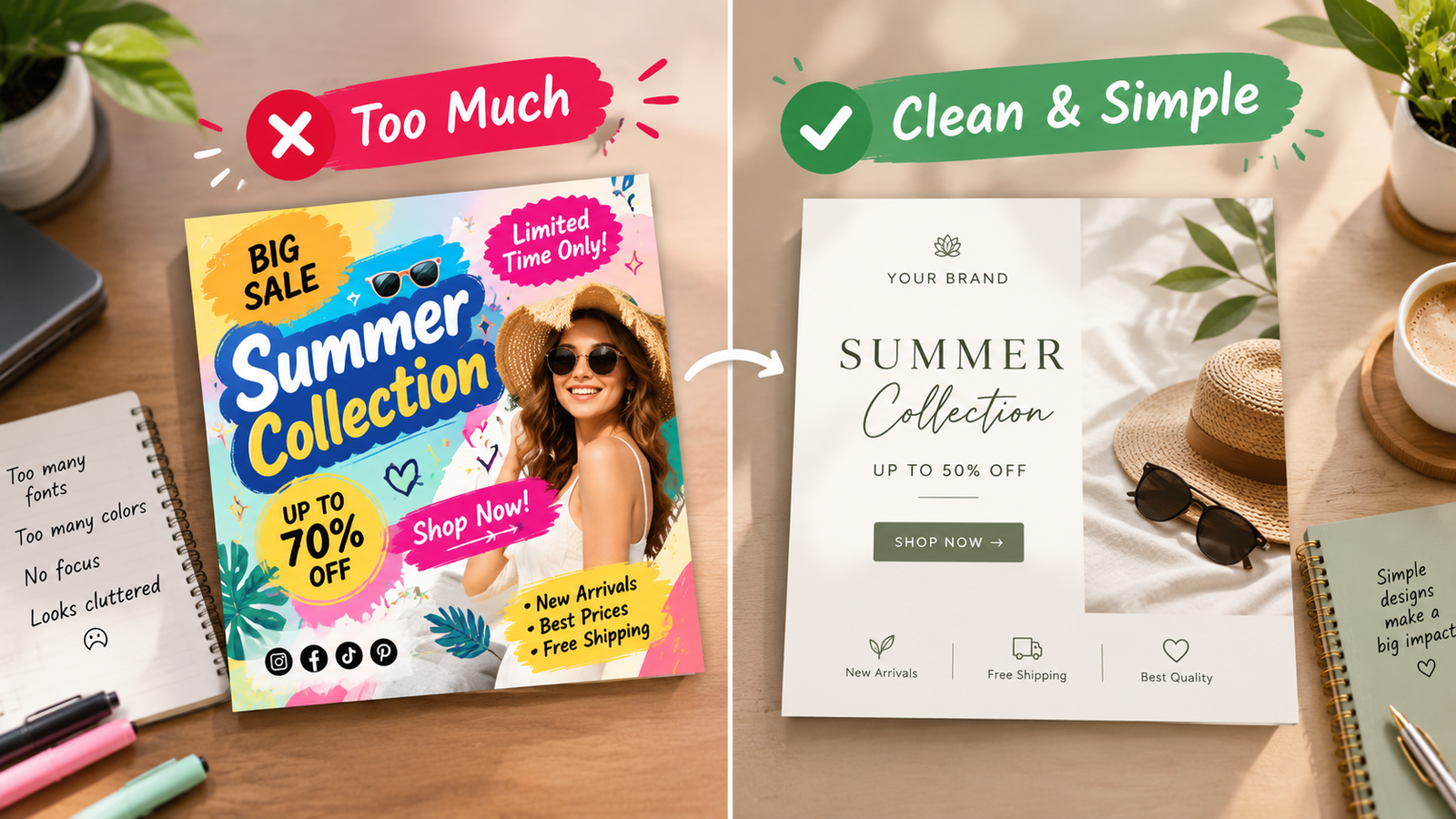
One of the biggest mistakes beginners make is adding too many elements.
You don’t need multiple graphics, fonts, colours and effects in one design.
A simple design can often look more professional than a crowded one.
Try to maintain:
- One clear main message
- A simple background
- Two or three complementary colours
- One or two font styles
- Enough empty space around your content
Remember: every element in your design should have a purpose.
Choose Fonts Carefully
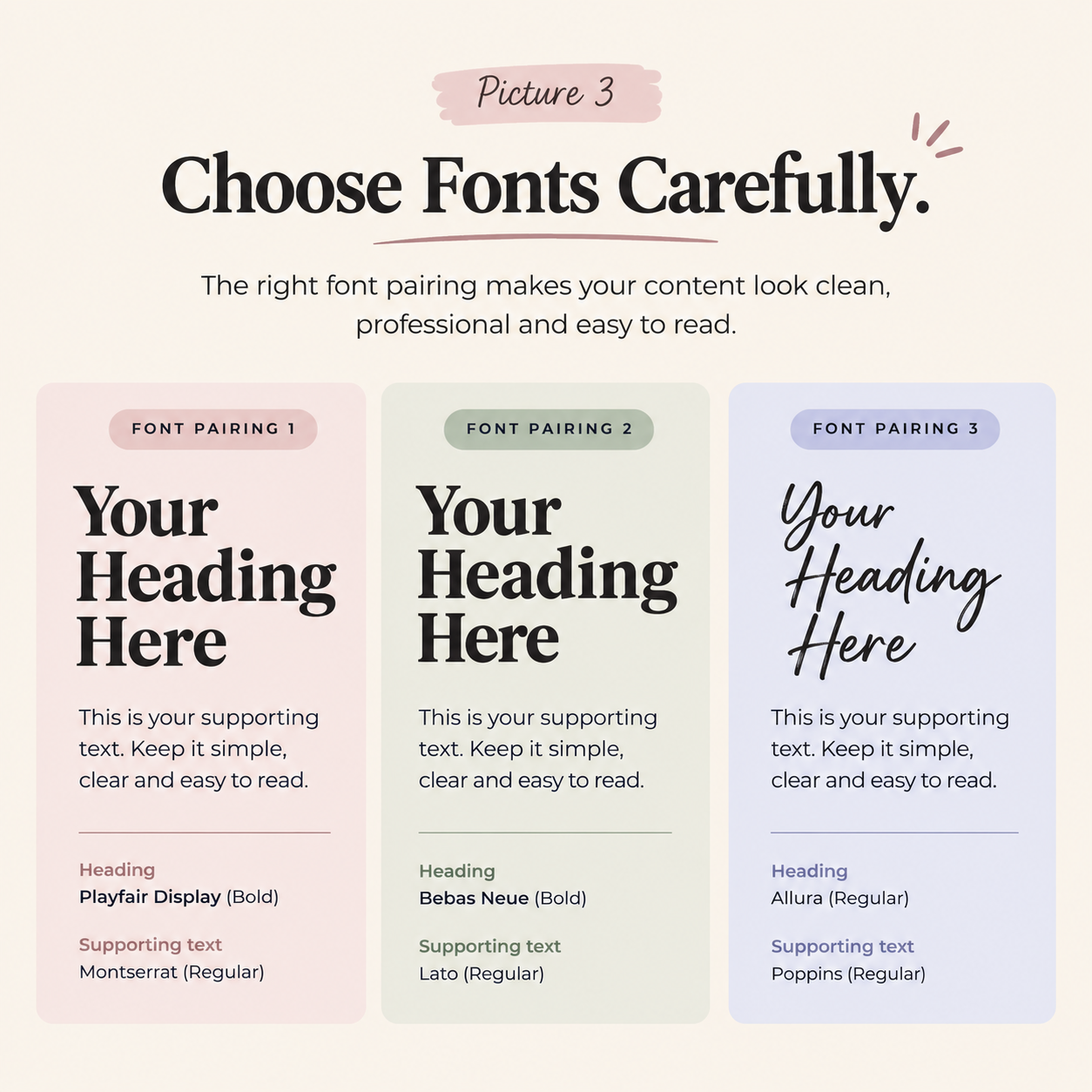
Canva offers a huge collection of fonts, but using too many fonts can make your design confusing.
A simple combination could be:
Heading: Bold or decorative font
Body: Simple and easy-to-read font
For example, you can use a stronger font for the main heading and a clean font for supporting information.
Also pay attention to font size. Your heading should immediately attract attention, while smaller text should remain comfortable to read.
Use a Consistent Colour Palette
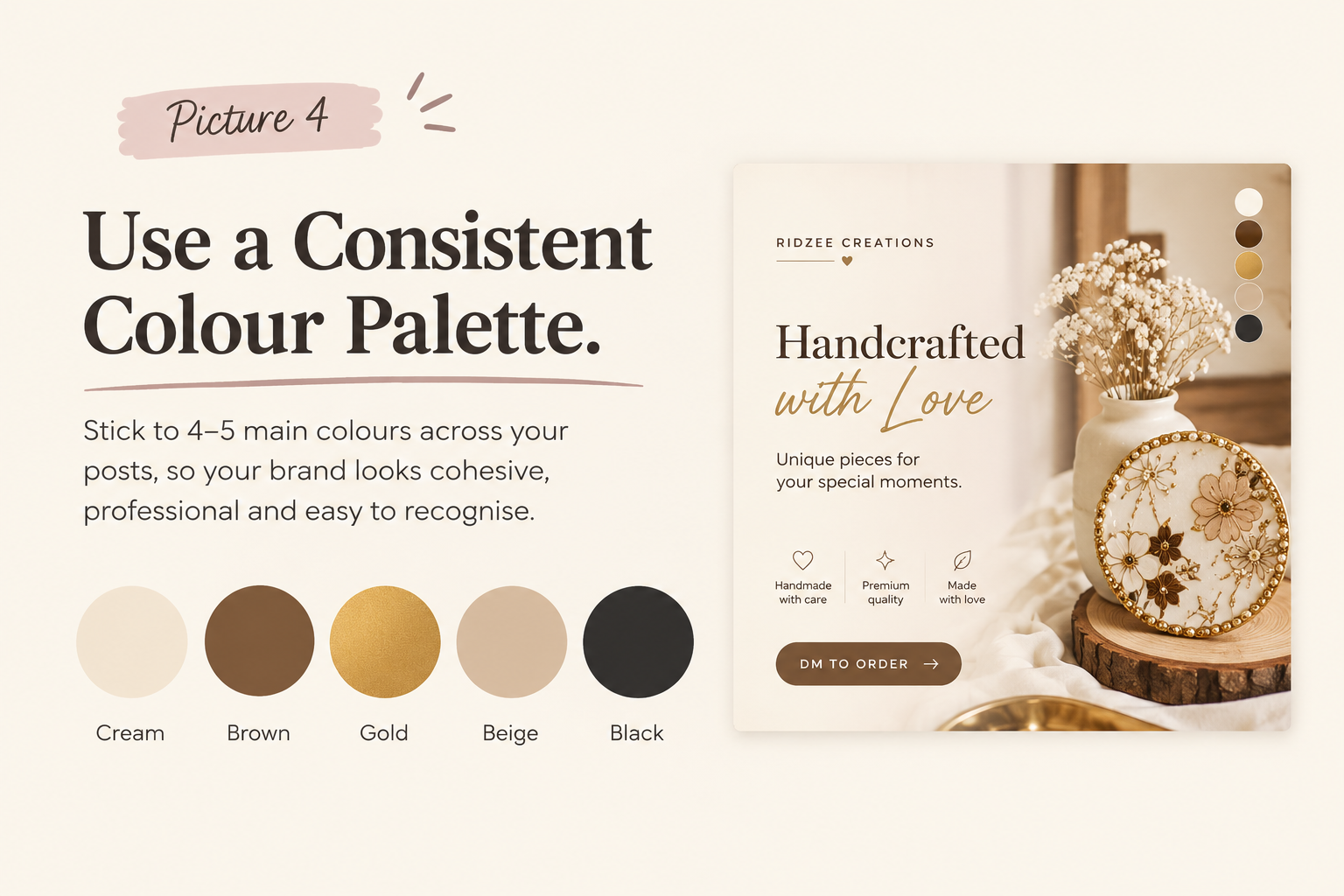
Colours can completely change the appearance of a design.
Instead of choosing a different colour for every element, create a small colour palette.
A beginner-friendly palette can include:
- One primary colour
- One secondary colour
- One accent colour
- A neutral colour such as white, cream, black or grey
For a luxury-style design, for example, you could experiment with neutral shades combined with one metallic-inspired accent.
The important thing is consistency.
Don't Overuse Effects
Canva includes many effects, animations, shadows, gradients and filters.
They can be useful, but using too many at once can make your design look messy.
Use effects when they improve the design rather than simply because they are available.
For example, a subtle shadow can help text stand out from an image, while excessive shadows, outlines and animations may distract from the main message.
Use High-Quality Images
Images are one of the most important parts of visual content.
Avoid blurry or heavily pixelated images whenever possible.
When selecting an image, consider:
- Image quality
- Composition
- Lighting
- Background
- Colour compatibility
- Relevance to your topic
The image should support your message rather than compete with it.
Use White Space
White space does not necessarily mean the colour white.
It means the empty space between text, images, buttons and other design elements.
Beginners often try to fill every empty area of their design. Instead, leave some breathing room. Good spacing makes a design easier to understand and gives it a cleaner appearance.
Use Canva Templates as Inspiration
Canva templates are extremely useful when you’re learning.
Instead of simply replacing the text and publishing the template, study how it is designed.
Look at:
- Where the heading is placed
- How images are positioned
- How colours are combined
- How much spacing is used
- How information is organised
Once you understand the structure, you can create your own designs instead of depending completely on templates.
Design According to Your Audience
A design for a college student doesn’t necessarily need to look like a design for a luxury brand.
Before designing, ask yourself:
Who is going to see this?
Then consider their expectations.
For example:
- Educational content → clean and easy to read
- Fashion content → visual and trend-focused
- Business content → professional and structured
- Children’s content → colourful and playful
- Luxury products → minimal and elegant
Canva Design Ideas Beginners Can Try
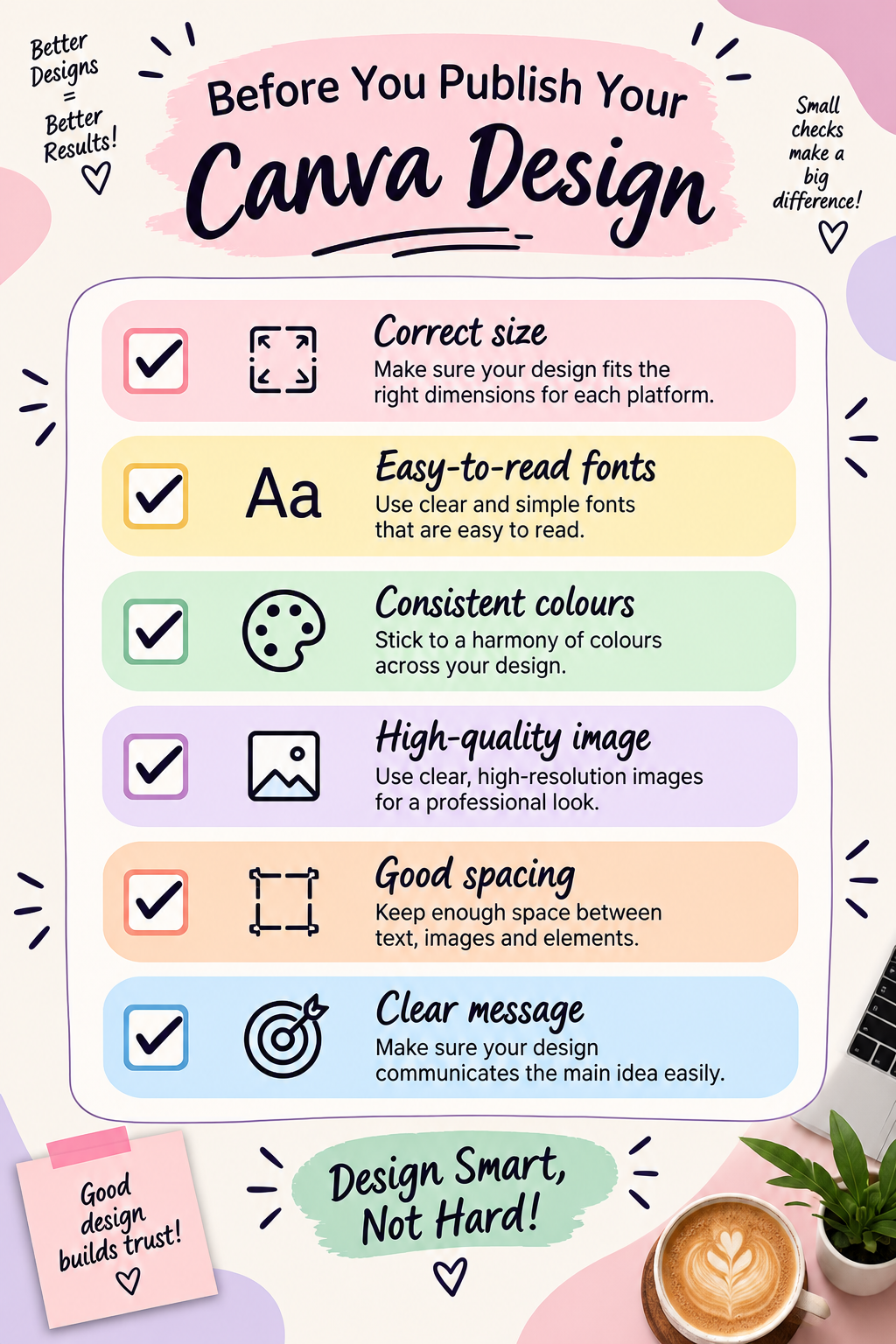
Canva makes graphic design much easier for beginners, but good design still requires practice.
Start with simple layouts, use fewer fonts and colours, choose high-quality images and focus on clear communication. As you become more comfortable, experiment with different layouts, animations and visual styles.
The goal isn’t to make your design complicated. The goal is to make your message easy to understand while keeping the design visually appealing.
Start with one simple design today, experiment with different layouts and gradually develop your own design style.