
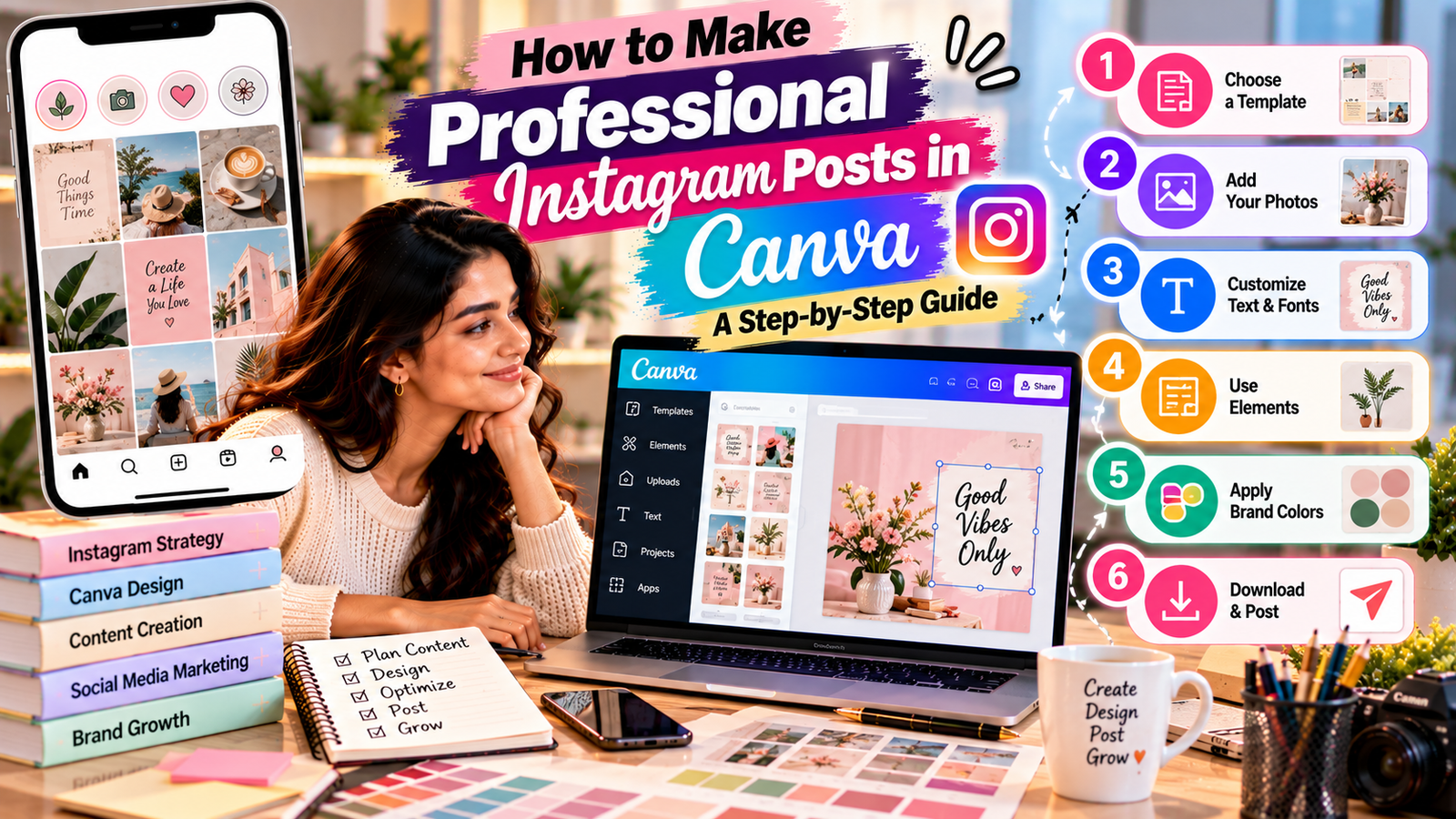
How to Make Professional Instagram Posts in Canva: A Step-by-Step Guide
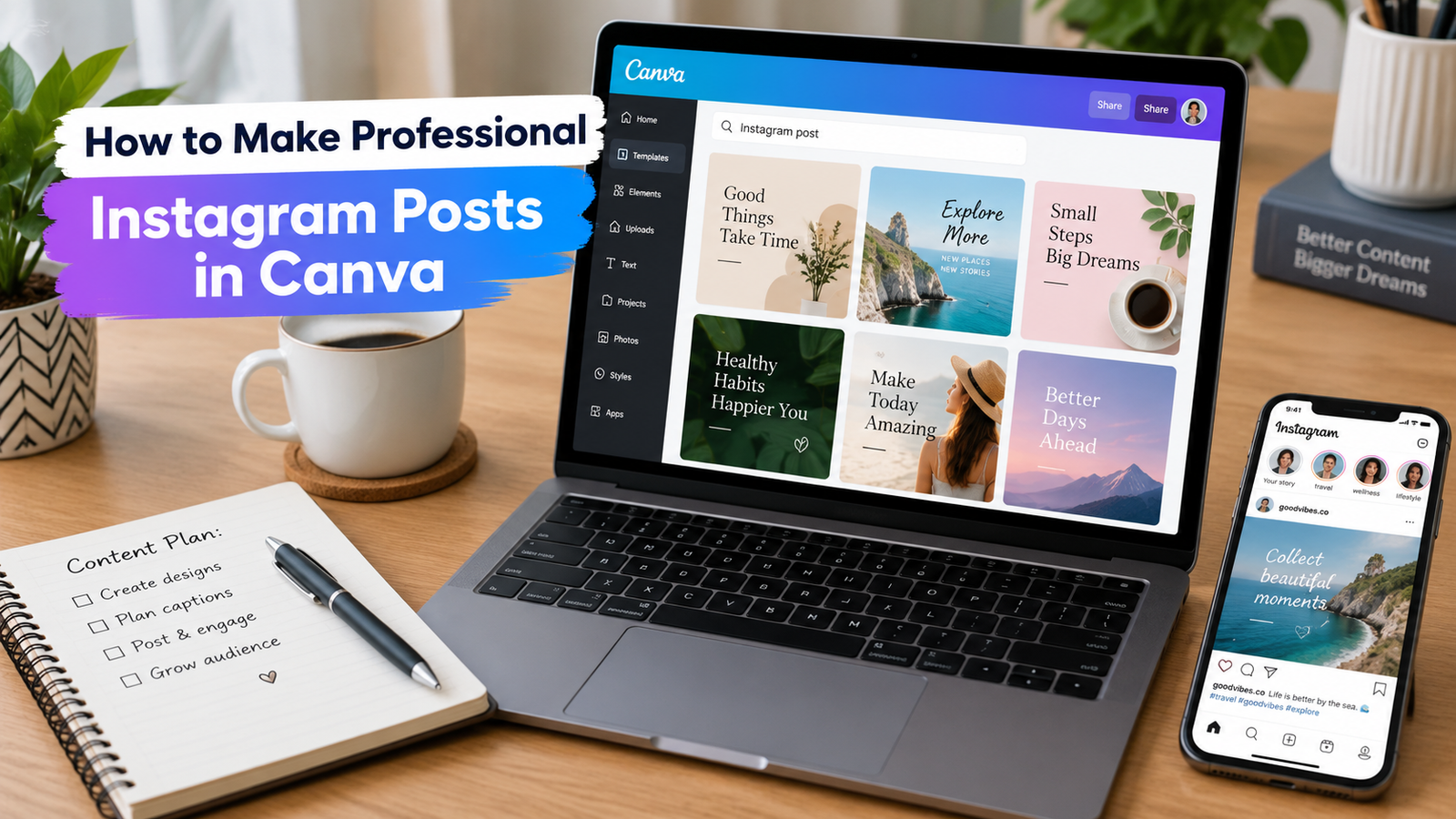
A professional Instagram post can make a huge difference in how people perceive your brand. You don’t need to be a professional graphic designer or spend hours learning complicated design software. With Canva, you can create attractive, branded, and engaging Instagram posts in just a few minutes.
Whether you’re a small business owner, digital marketer, freelancer, content creator, or someone managing a personal Instagram account, Canva provides easy-to-use tools and templates to create professional-looking content.
In this guide, you’ll learn how to make professional Instagram posts in Canva, what design principles to follow, common mistakes to avoid, and how to create posts that look polished and consistent.
Why Use Canva for Instagram Posts?
Canva is popular because it makes graphic design accessible to everyone. Its drag-and-drop editor, templates, fonts, graphics, photos, and other design elements allow beginners to create social media content without advanced design skills.
Some key benefits include:
- Easy drag-and-drop editing
- Thousands of Instagram templates
- Professional fonts and graphics
- Easy brand-color customization
- Photo and video editing tools
- Ready-made social media layouts
- Easy resizing for different platforms
- Quick collaboration and sharing
For businesses, Canva can also help maintain a consistent visual identity across Instagram posts, Stories, Reels covers, and other marketing materials.
Why Use Canva for Instagram Posts?
Canva is popular because it makes graphic design accessible to everyone. Its drag-and-drop editor, templates, fonts, graphics, photos, and other design elements allow beginners to create social media content without advanced design skills.
Some key benefits include:
- Easy drag-and-drop editing
- Thousands of Instagram templates
- Professional fonts and graphics
- Easy brand-color customization
- Photo and video editing tools
- Ready-made social media layouts
- Easy resizing for different platforms
- Quick collaboration and sharing
For businesses, Canva can also help maintain a consistent visual identity across Instagram posts, Stories, Reels covers, and other marketing materials.
Choose the Correct Instagram Post Size
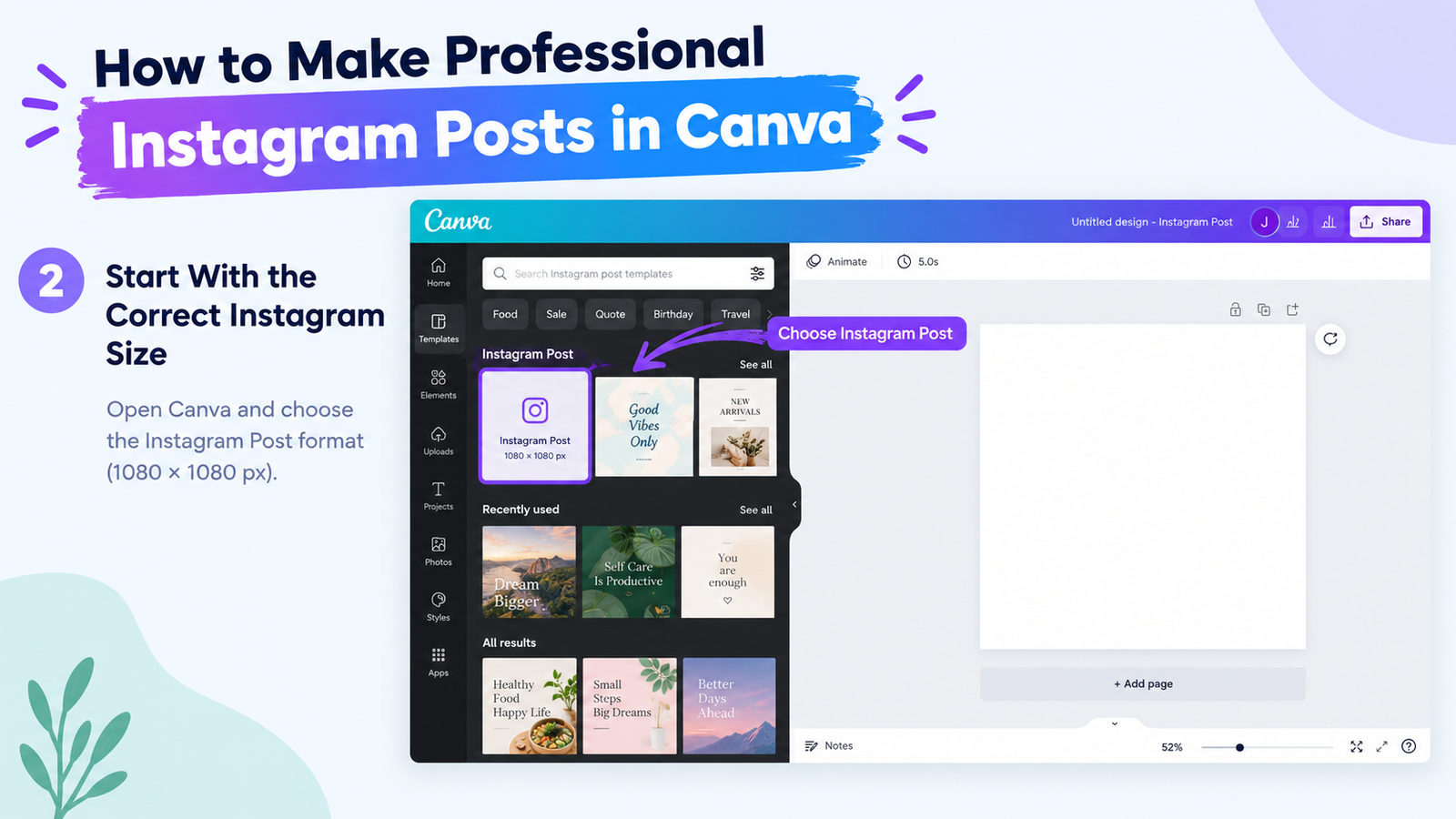
Before designing your post, choose the correct dimensions.
For a standard Instagram feed post, a square 1:1 format is commonly used, while a portrait 4:5 format gives your content more vertical space in the Instagram feed.
For example:
Instagram Portrait: 1080 × 1350 pixels
Instagram Square: 1080 × 1080 pixels
If your goal is to maximize the visual space available in the feed, portrait posts are often a useful choice.
In Canva, search for Instagram Post and select a suitable design size.
Start With a Professional Canva Template
If you’re new to graphic design, don’t start with a completely blank canvas.
Search Canva for templates related to your content, such as:
- Instagram business posts
- Digital marketing posts
- Product promotions
- Quote posts
- Sale announcements
- Educational posts
- Restaurant promotions
- Fashion posts
- Service advertisements
Choose a template that matches your brand style.
Important Tip
Don’t simply copy the template exactly.
Instead, use it as a starting point and customize the:
- Colors
- Fonts
- Images
- Logo
- Headline
- Layout
- Call-to-action
This helps your post look more original and aligned with your brand.
Keep Your Instagram Design Simple
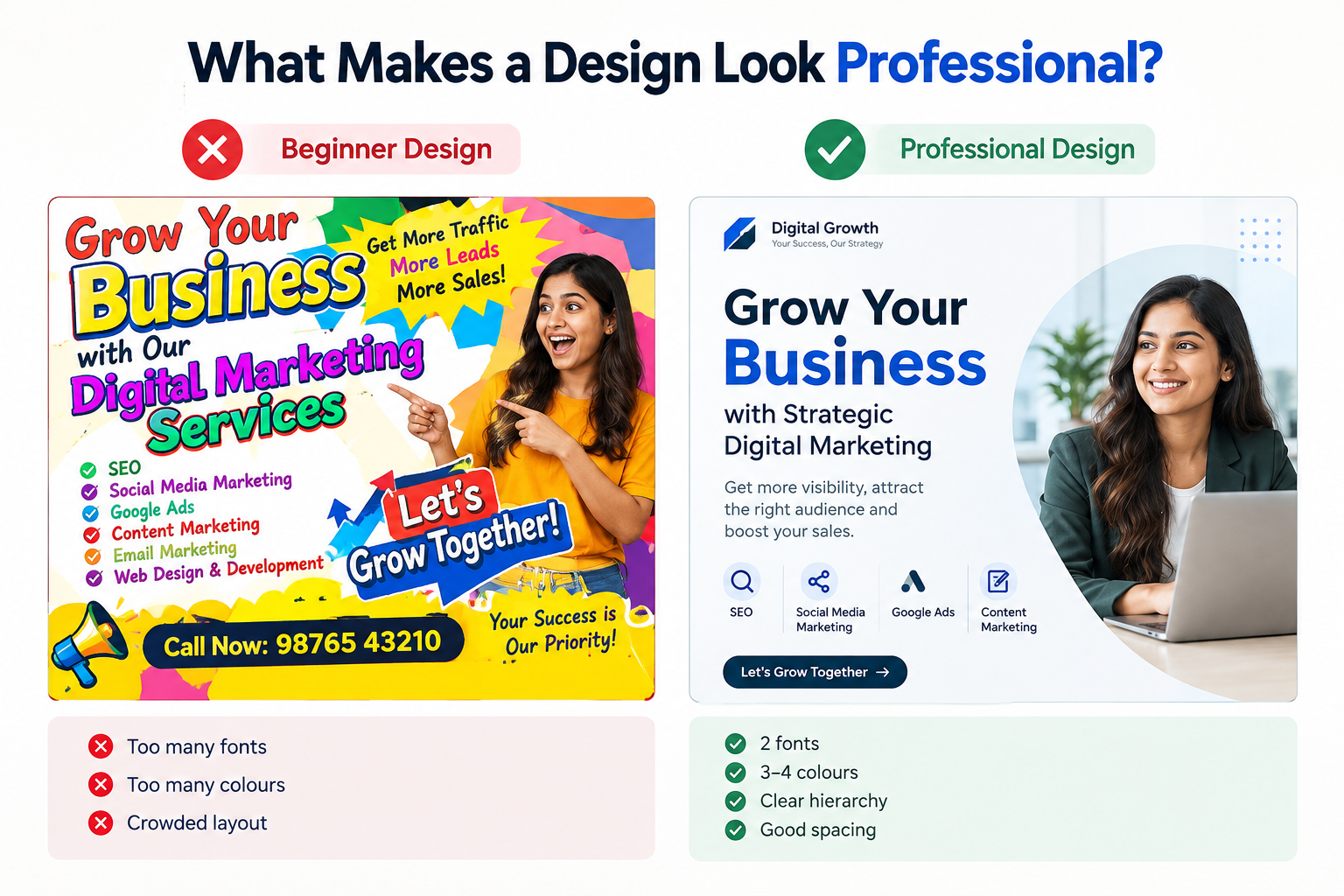
one of the biggest mistakes beginners make is adding too many elements.
A professional Instagram post doesn’t need:
- Ten different fonts
- Too many colors
- Excessive graphics
- Multiple decorative elements
- Long paragraphs
- Several competing headlines
Instead, focus on one main message.
Ask yourself:
“What should someone understand within the first few seconds of seeing this post?”
If the answer isn’t obvious, simplify your design.
Remember:
Less clutter = better readability = stronger visual impact.
Use a Strong Headline
Your headline is one of the most important parts of an Instagram graphic.
It should immediately communicate what the post is about.
For example, instead of:
“Some Things You Should Know About Social Media Marketing”
Try:
5 Social Media Mistakes That Hurt Your Reach
The second headline is shorter, clearer, and creates curiosity.
Other examples include:
- 5 Canva Design Tips for Beginners
- How to Get More Customers From Instagram
- 3 Mistakes Small Businesses Should Avoid
- Create Better Instagram Posts in Minutes
Keep your headline short enough to read quickly on a mobile screen.
Add High-Quality Images
Images are often the first thing people notice.
Use sharp, relevant, high-quality images that support your message.
For product-based businesses, make sure the product is clearly visible.
For educational posts, consider using:
- Icons
- Illustrations
- Simple diagrams
- Screenshots
- Relevant photography
Avoid using low-resolution images because they can make an otherwise professional design look poor.
Create Visual Hierarchy
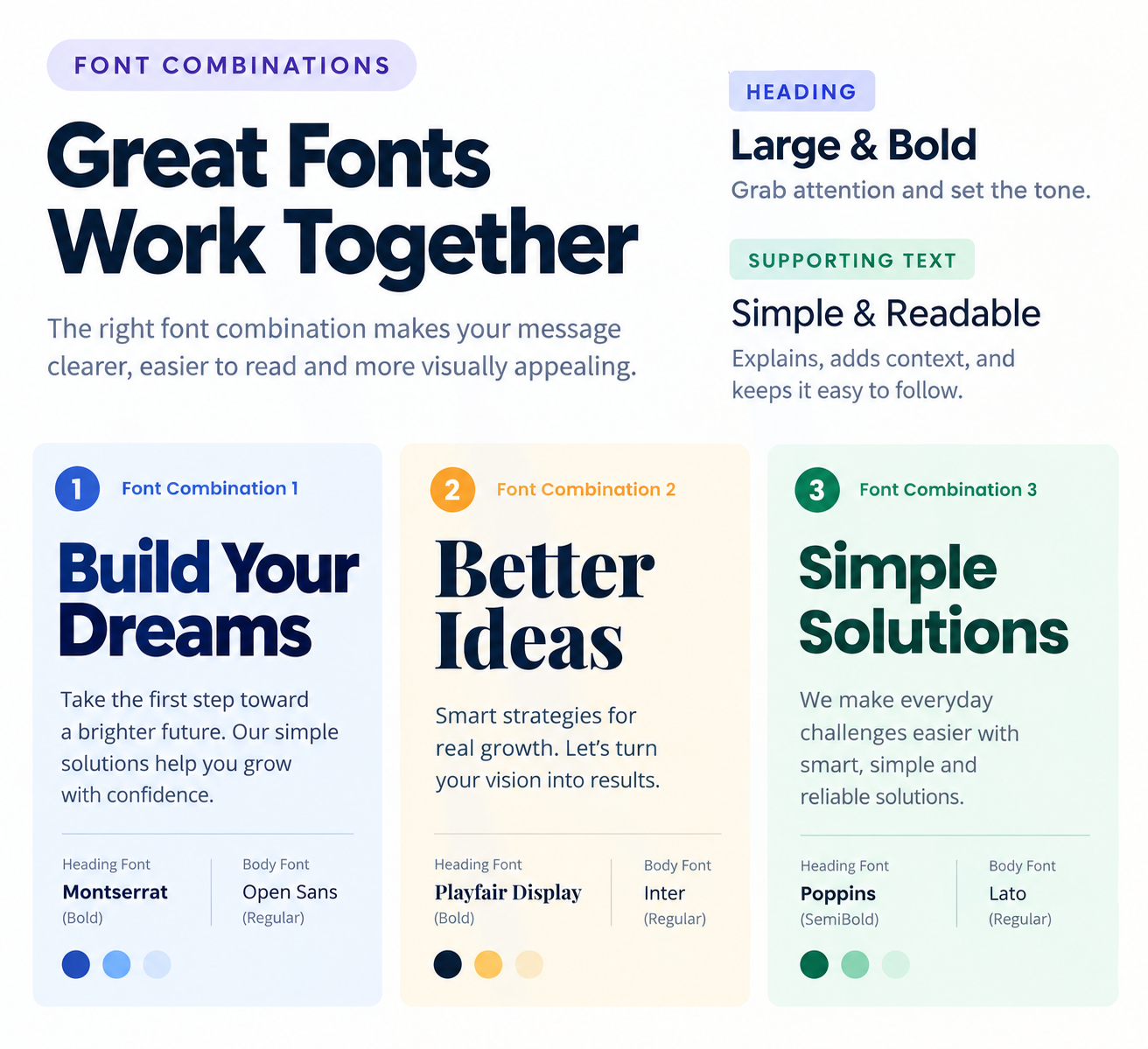
Visual hierarchy tells the viewer where to look first, second, and third.
A simple Instagram design can follow this structure:
1. Main headline
↓
2. Supporting image or information
↓
3. Call-to-action
For example:
5 Canva Design Tips
Create cleaner Instagram posts with these simple techniques.
Save this post for later →
The viewer immediately understands the purpose of the post.
Final Thoughts
Learning how to make professional Instagram posts in Canva doesn’t require years of graphic design experience.
The key is to focus on the fundamentals: simple layouts, strong typography, high-quality visuals, consistent branding, good spacing, and a clear message.
Instead of trying to add more elements to make your design look impressive, focus on making every element serve a purpose.
With Canva and a consistent design strategy, you can create Instagram content that looks professional, communicates clearly, and strengthens your brand’s visual identity.
Start simple, stay consistent, and keep improving with every post.