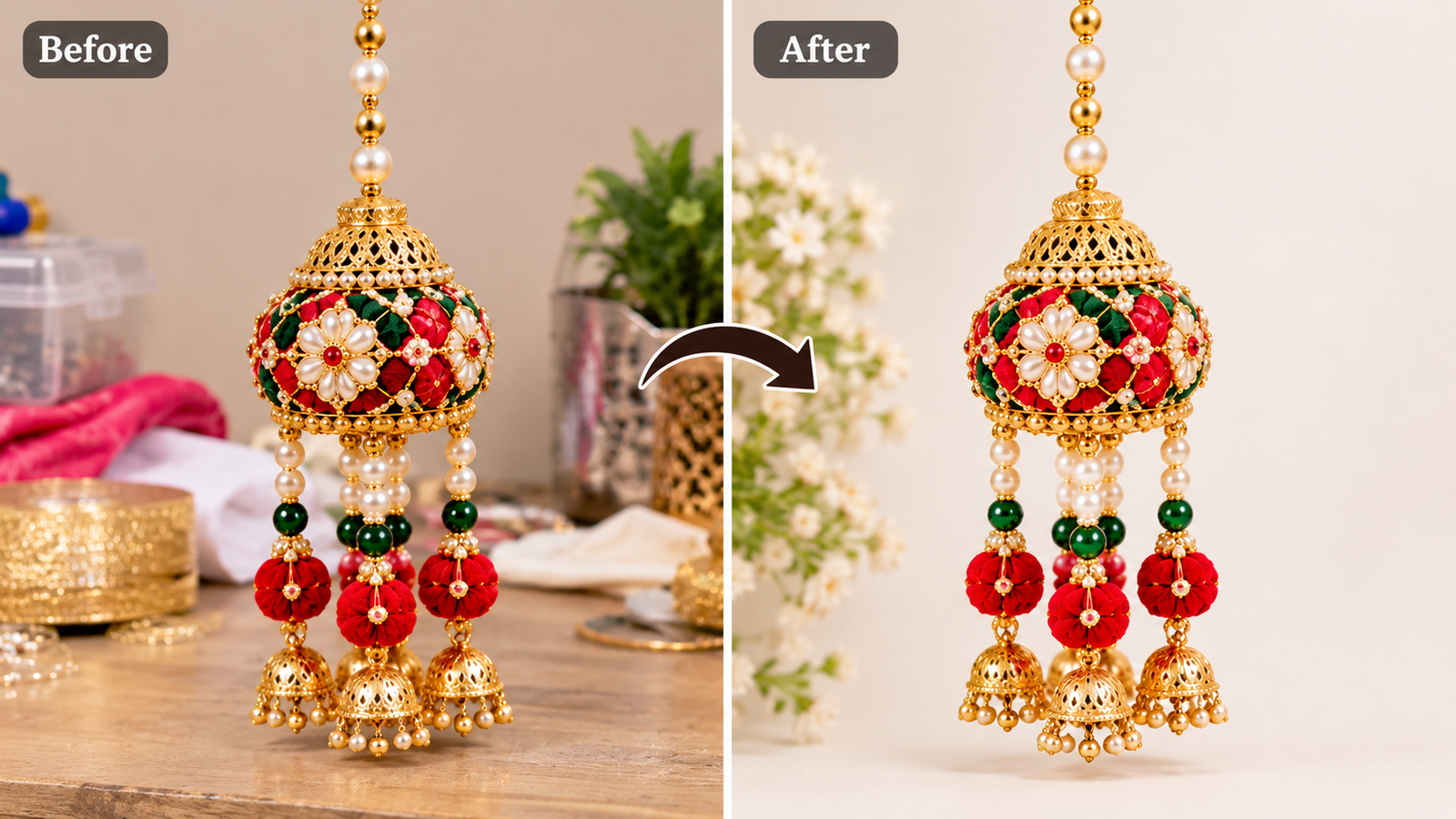
How to Remove Background From a Photo for Free
Introduction
Background removal is useful for product photography, online stores, presentations, and social media design.
Modern editing tools can automatically separate a subject from its background, reducing the need for manual editing.
Step 1: Select a Clear Photograph
Choose an image with good lighting and a clearly visible subject.
Avoid heavily blurred images or photographs where the subject blends into the background.
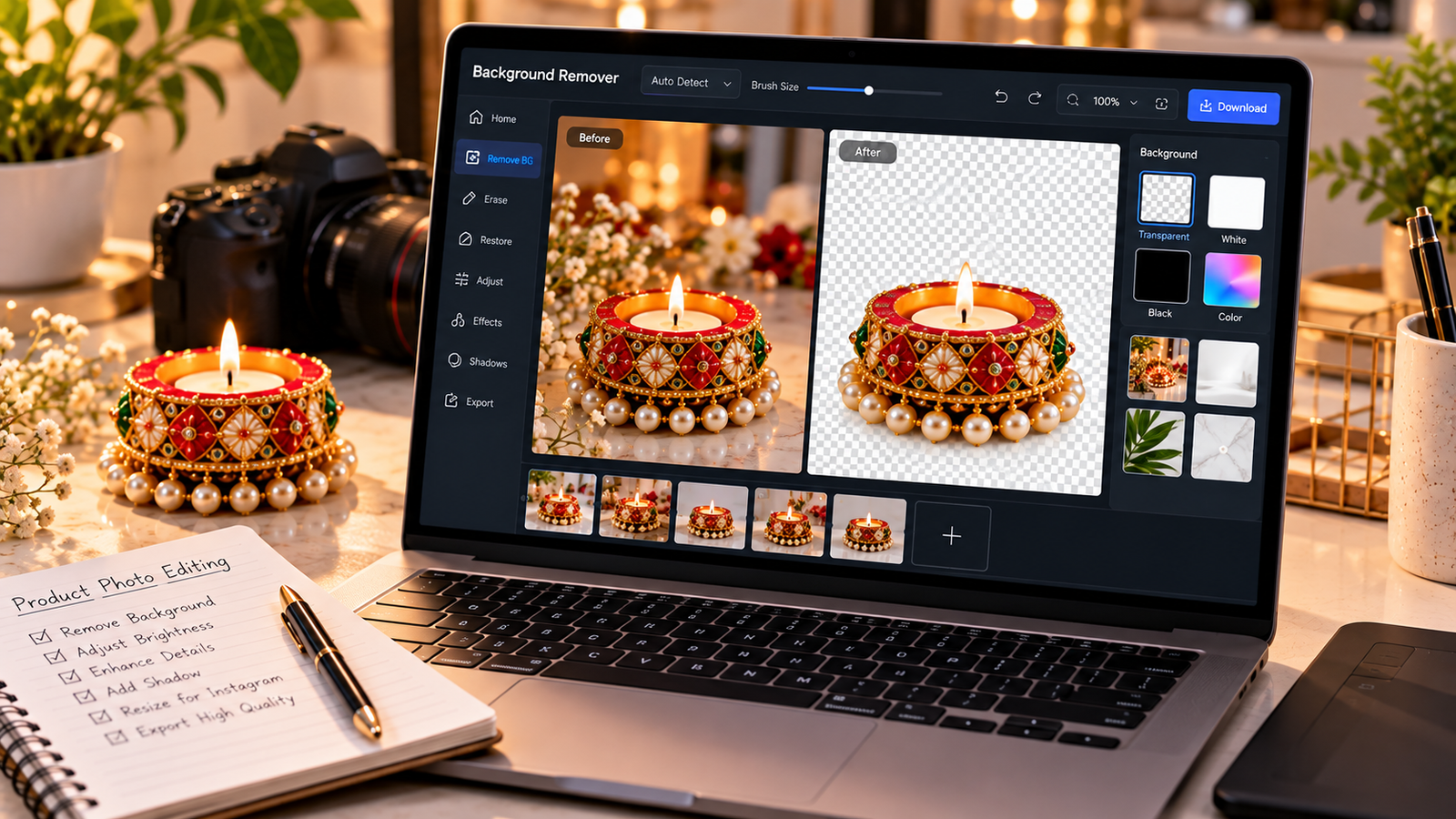
Step 2: Choose a Background Removal Tool
Try a tool with a free background removal feature, such as Adobe Express or remove.bg, subject to current plan limits.
Check whether the free version supports the output resolution you need.
Step 3: Upload Your Image
Upload a photograph that you own or have permission to edit.
Allow the tool to detect the main subject and remove the surrounding background.
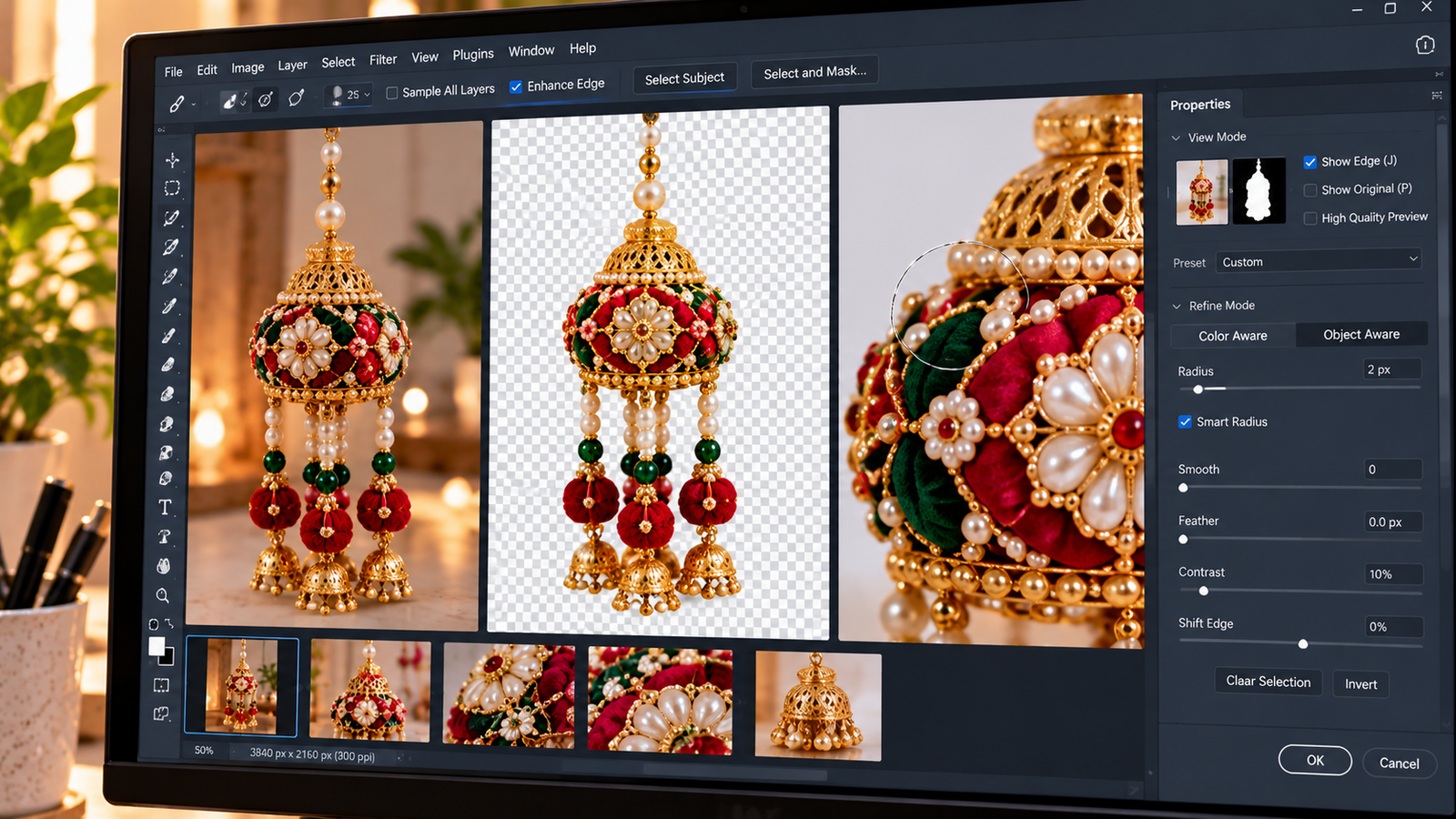
Step 4: Check Fine Details
Inspect edges carefully, especially around hair, transparent materials, lace, and decorative objects.
Automatic tools sometimes remove small but important parts of a product.
Step 5: Refine the Selection
Use available erase-and-restore controls to correct mistakes.
For product photography, preserve the original shape, color, and decorative details.
Step 6: Export as PNG
If you need transparency, save the final image in a format that supports it, such as PNG.
JPEG does not support transparent backgrounds.
Step 7: Use the Image in Your Design
Place the transparent subject on a suitable background while maintaining realistic proportions and shadows.
Conclusion
Background removal can improve the presentation of products and marketing materials. For professional results, review the edges and ensure the edited image still represents the original subject accurately.