
Google Analytics 4 is built around events. Every page view, click, scroll and form submission is an event, and tracking the right ones tells you exactly how visitors interact with your website. This guide explains how to set up GA4 events correctly so your reports answer real business questions.
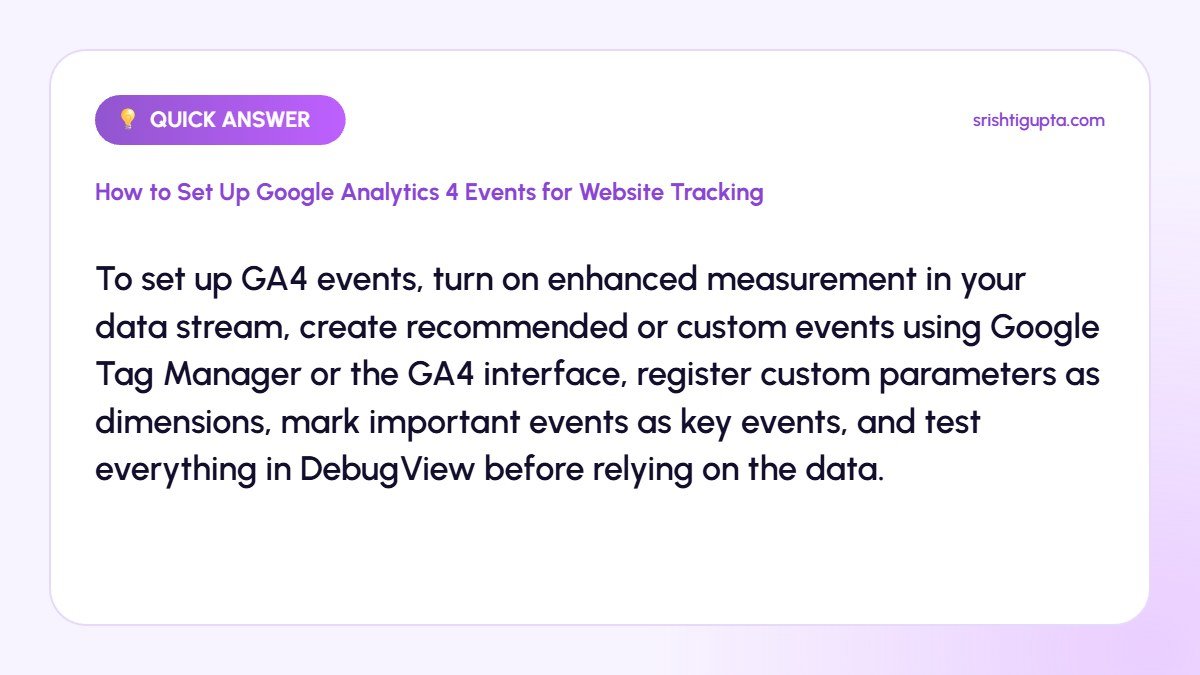
Quick answer: To set up GA4 events, turn on enhanced measurement in your data stream, create recommended or custom events using Google Tag Manager or the GA4 interface, register custom parameters as dimensions, mark important events as key events, and test everything in DebugView before relying on the data.
Why It Matters
Without proper event tracking you only see traffic, not actions. Events show which pages generate leads, which buttons get clicked and where people drop off. This data powers better decisions on content, design and advertising budgets.
Step-by-Step: How to Set Up Google Analytics 4 Events for Website Tracking
Step 1: Enable enhanced measurement
In GA4 go to Admin, Data streams, select your website stream and turn on enhanced measurement. This automatically tracks page views, scrolls, outbound clicks, site search, video engagement and file downloads.
Step 2: List the actions that matter
Write down the actions that indicate value for your business, such as contact form submissions, phone clicks, WhatsApp clicks, newsletter sign-ups or purchases. These become your priority events.
Step 3: Use recommended event names
GA4 has recommended events like generate_lead, sign_up and purchase. Using these names keeps your data consistent and unlocks better reporting and integrations with Google Ads.
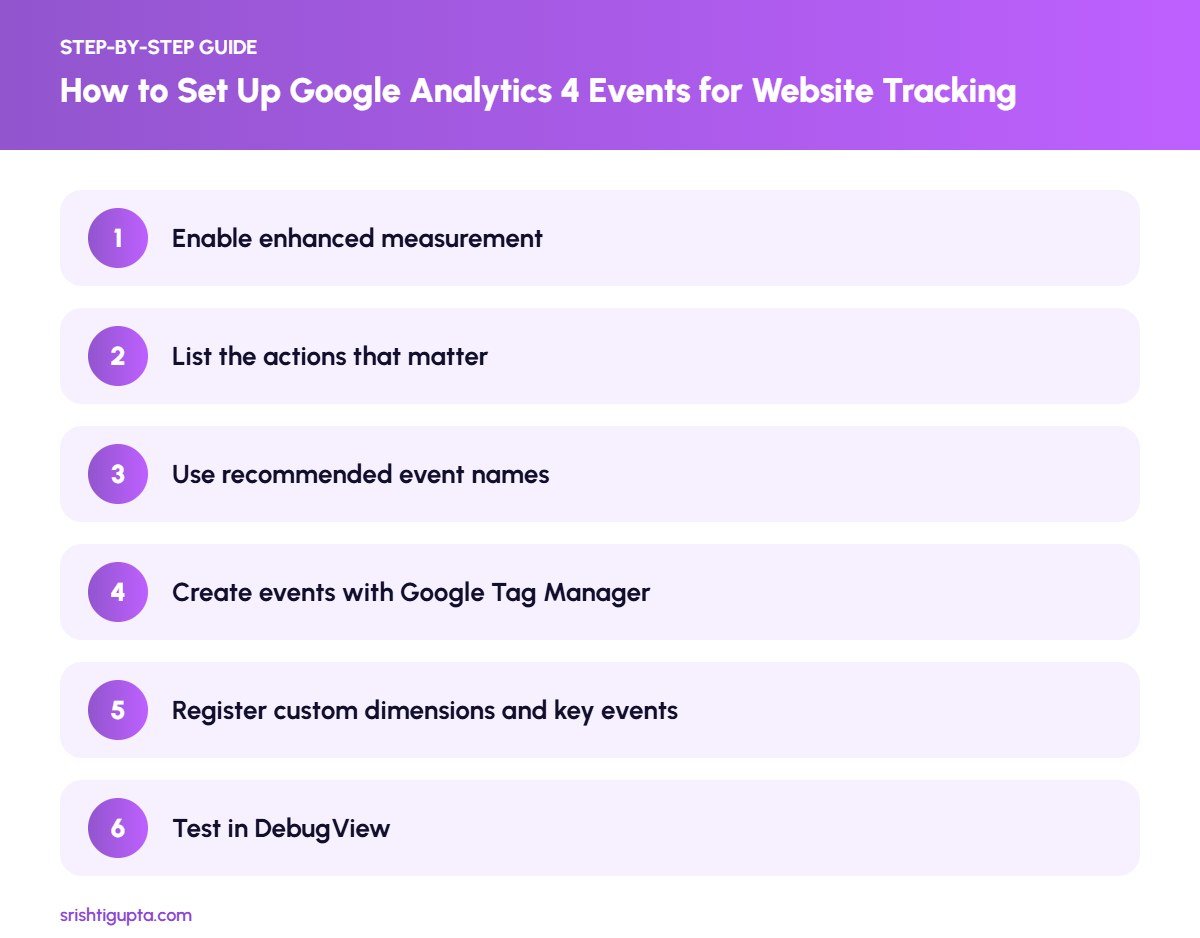
Step 4: Create events with Google Tag Manager
In Tag Manager, create a GA4 Event tag, enter the event name, add parameters such as form_name or button_text, and attach a trigger such as a form submission or click on a tel: link. Publish the container once tested.
Step 5: Register custom dimensions and key events
In GA4 Admin, register any custom parameters as custom dimensions so they appear in reports. Then mark important events like generate_lead as key events so they count as conversions.
Step 6: Test in DebugView
Use Tag Manager preview mode and GA4 DebugView to confirm events fire once, with the correct names and parameters. Fix duplicates before collecting data for reporting.
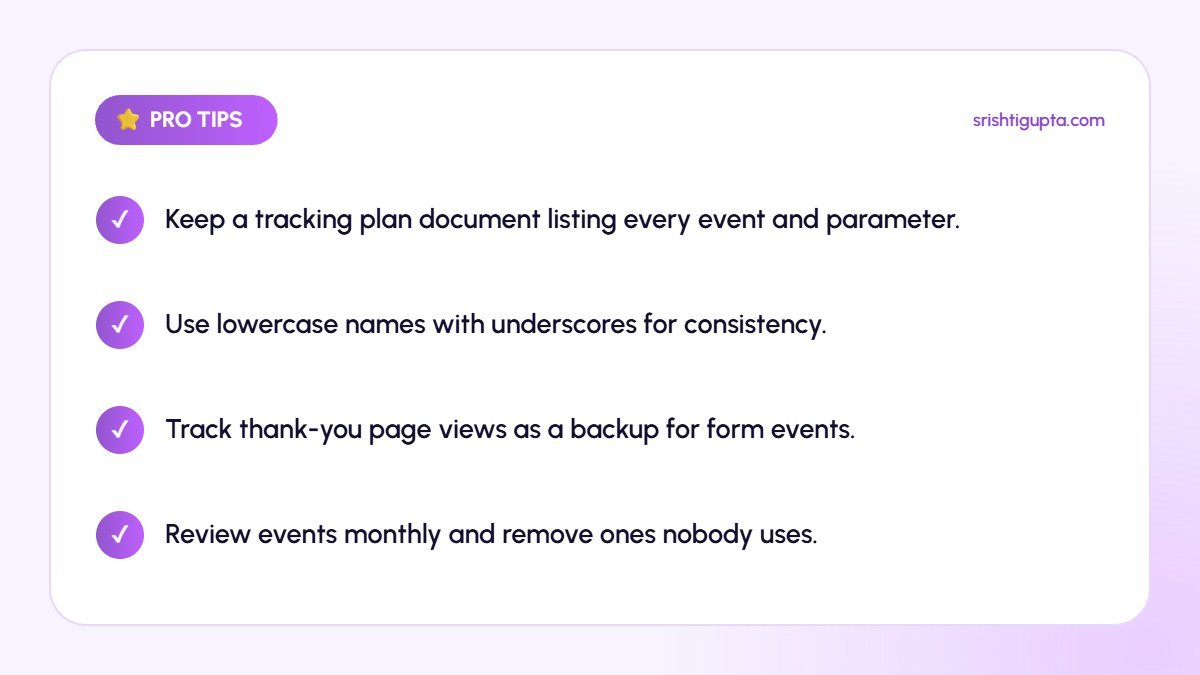
Pro Tips
- Keep a tracking plan document listing every event and parameter.
- Use lowercase names with underscores for consistency.
- Track thank-you page views as a backup for form events.
- Review events monthly and remove ones nobody uses.
Common Mistakes to Avoid
- Creating many similar events with inconsistent names.
- Forgetting to register custom parameters as dimensions.
- Marking page views or scrolls as key events.
- Publishing tags without testing, leading to duplicate events.
Frequently Asked Questions
What is the difference between events and key events in GA4?
Events record any interaction, while key events are the events you mark as most important to your business, similar to conversions in older Analytics versions.
Do I need Google Tag Manager for GA4 events?
Not always. Enhanced measurement and the create event feature cover simple needs, but Tag Manager gives much more control for forms, clicks and custom parameters.
How long does it take for events to appear in reports?
Events show in DebugView and realtime reports within seconds, while standard reports can take up to 24 to 48 hours to update.
Final Thoughts
Good GA4 event tracking turns your analytics from a traffic counter into a decision-making tool. Plan the actions that matter, use clean naming, test thoroughly and your reports will clearly show what drives growth.
Need expert help? Srishti Gupta is a digital marketing expert in Ludhiana. Explore her performance marketing or get in touch to discuss your project.