

Schema markup is structured data that helps search engines and AI assistants understand your content, such as your business details, articles, products and FAQs. You do not need to be a developer to add it, thanks to plugins and free tools.
Quick answer: To add schema markup without coding, use an SEO plugin like Yoast or Rank Math to configure site-wide Organization or Person schema, choose schema types for posts and pages, use blocks or plugin settings for FAQ and product data, or generate JSON-LD with a free generator, then validate it with the Rich Results Test.
Why It Matters
Schema can make your listings eligible for rich results like star ratings, FAQs and product information, and it helps Google and AI search engines connect your business with the right entities, locations and topics.

Step-by-Step: How to Add Schema Markup to Your Website Without Coding
Step 1: Choose the right schema types
Identify what fits your content: Organization or LocalBusiness for your business, Article for blog posts, Product for products, FAQPage for FAQs and Service for service pages.
Step 2: Configure site-wide schema in your SEO plugin
In Yoast or Rank Math, set whether your site represents an organisation or a person, and add your logo, name and social profiles. This creates the base knowledge graph.
Step 3: Set schema for posts and pages
Use the plugin’s schema tab to choose page and article types for each content type, such as Blog Post for articles and Web Page for services.

Step 4: Add FAQ and product schema with blocks
Use the FAQ block in Yoast or Rank Math, or WooCommerce’s built-in product schema, so structured data is generated automatically from visible content.
Step 5: Use a generator for special cases
For LocalBusiness or events, use a free JSON-LD generator, fill in your details and paste the code into an HTML widget or a header code plugin.
Step 6: Validate and monitor
Test pages with Google’s Rich Results Test and the Schema Markup Validator, then check the Enhancements section in Search Console for errors.
Pro Tips
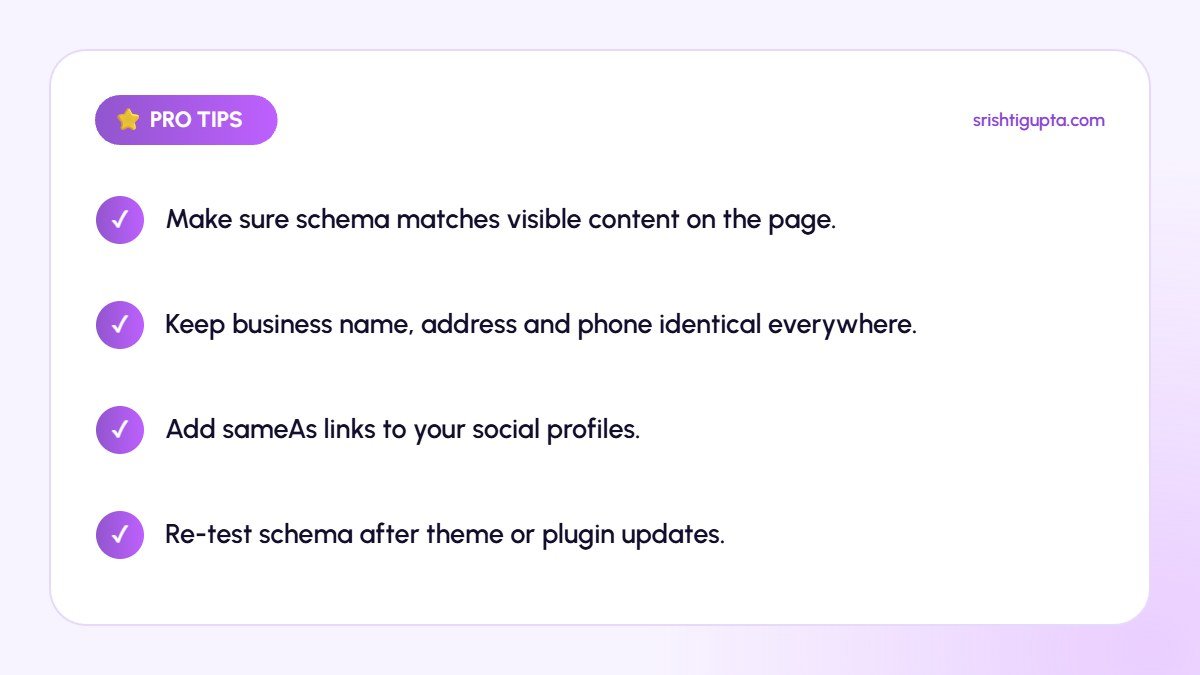
- Make sure schema matches visible content on the page.
- Keep business name, address and phone identical everywhere.
- Add sameAs links to your social profiles.
- Re-test schema after theme or plugin updates.
Common Mistakes to Avoid
- Adding fake reviews or ratings in schema.
- Using multiple plugins that output duplicate schema.
- Marking up content that is not visible to users.
- Ignoring errors reported in Search Console.
Frequently Asked Questions
Does schema markup improve rankings?
Schema is not a direct ranking factor, but it can improve how your result appears and helps search engines understand your content.
Which plugin is best for schema in WordPress?
Yoast SEO and Rank Math both handle common schema types well. Schema Pro and similar plugins offer more advanced options.
What format should schema markup use?
Google recommends JSON-LD, which most plugins and generators use by default.
Final Thoughts
Schema markup is no longer just for developers. With SEO plugins, blocks and free generators, any business can add structured data that helps search engines and AI tools understand and showcase their content.
Need expert help? Srishti Gupta is a digital marketing expert in Ludhiana. Explore her website development or get in touch to discuss your project.