
How to Create a Product Catalogue Using Canva: A Step-by-Step Guide
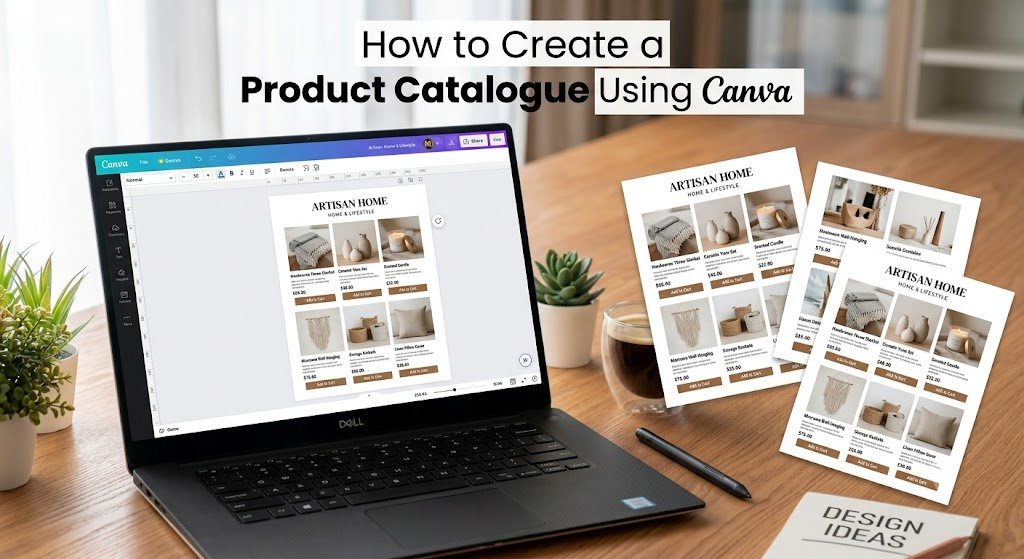
A well-designed product catalogue can turn a simple list of products into a powerful sales and marketing tool. Whether you run a small business, online store, handmade brand, fashion business, or service-based company, a professional catalogue helps customers understand what you offer and makes your brand look more trustworthy.
The good news? You don’t need advanced graphic design skills to create a professional product catalogue. With Canva, you can create attractive catalogues using ready-made templates, product photos, fonts, colors, and layouts.
In this guide, you’ll learn how to create a product catalogue using Canva, from choosing a template to downloading and sharing your finished catalogue.
Why Create a Product Catalogue?
A product catalogue gives customers an organized way to explore your products in one place.
A good catalogue can help you:
- Showcase multiple products professionally
- Display product images and descriptions
- Highlight prices, features, and offers
- Build a consistent brand identity
- Share products on WhatsApp and social media
- Create a printable catalogue for customers
- Make product information easier to understand
- Support your online and offline marketing
For small businesses, a digital product catalogue can be especially useful because it can be shared instantly with potential customers.
What You Need Before Creating Your Catalogue
Before opening Canva, prepare the information you want to include.
1. Product Photos
Use clear, high-quality images of your products. Try to maintain a similar photography style throughout the catalogue. For example, if you’re creating a fashion catalogue, photograph products against clean backgrounds and use consistent lighting.
2. Product Names
Give every product a clear and easy-to-understand name.
Instead of:
Product 01
Try:
Handcrafted Floral Festive Toran
A descriptive product name makes your catalogue more useful for customers and can also support search visibility when the catalogue is published online.
3. Product Descriptions
Keep descriptions short but informative.
Include important details such as:
- Material
- Size
- Color
- Design
- Main features
- Suitable occasions
- Customization options
4. Prices
If your prices are fixed, consider displaying them clearly. If prices change frequently, you can use wording such as “Contact us for current pricing” or create a catalogue without prices.
5. Contact Information
Don’t forget your:
- Website
- Phone number
- Email address
- Social media handles
- WhatsApp contact
- Business location, if relevant
Your catalogue should make it easy for customers to take the next step.
How to Create a Product Catalogue in Canva
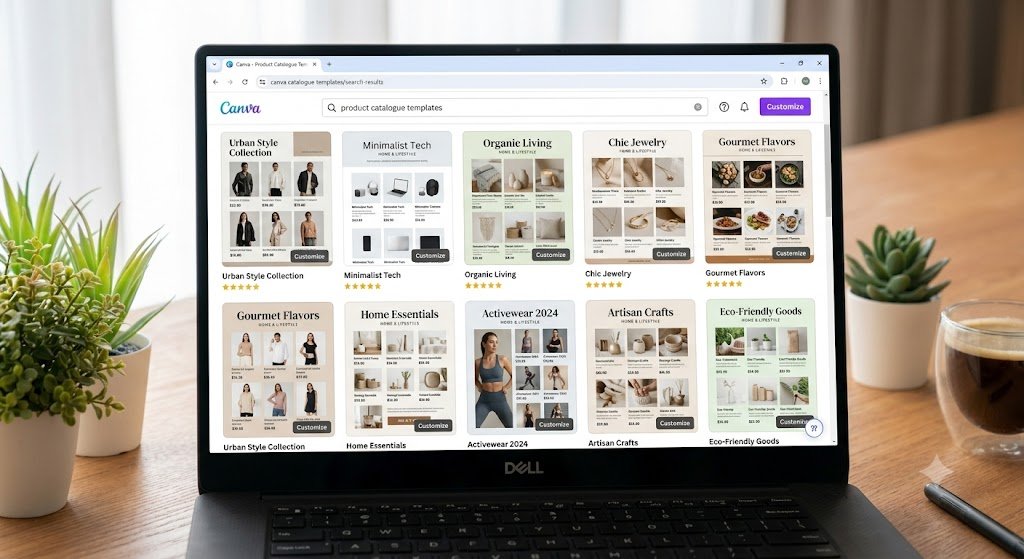
Now let’s create your catalogue step by step.
Step 1: Open Canva
Go to Canva and sign in to your account.
In the search bar, type:
Product Catalogue
You’ll see different catalogue templates designed for different industries.
You can also search for terms such as:
- Product brochure
- Product booklet
- Product lookbook
- Business catalogue
- Digital catalogue
- Fashion catalogue
- Jewellery catalogue
- Product brochure template
Choose a format based on where you plan to use your catalogue.
Step 2: Choose the Right Catalogue Template
Canva provides many professionally designed templates.
Don’t choose a template simply because it looks attractive. Think about your brand and customers.
Look for a template with:
- Clean product layouts
- Enough space for product images
- Easy-to-read typography
- Consistent page structure
- Clear pricing areas
- Space for descriptions
- A professional visual style
For most businesses, a clean and simple layout works better than a page overloaded with decorations.
SEO Tip
If your catalogue is going to be promoted online, keep your product names and descriptions natural and descriptive. Avoid filling the page with repeated keywords.
Step 3: Customize Your Brand Colors
One of the easiest ways to make a Canva catalogue look professional is to use consistent brand colors.
Choose approximately 2–4 main colors.
For example:
Primary color: Your main brand color
Secondary color: Supporting color
Background: White or light neutral shade
Accent: Used for prices, buttons, or important information
Consistency helps customers recognize your brand across your website, social media posts, packaging, and catalogue.
Step 4: Add Your Logo
Upload your business logo to Canva and place it consistently throughout the catalogue.
You can put the logo:
- On the cover
- In the header
- In the footer
- On the final contact page
Avoid making the logo too large. Your products should remain the visual focus.
Step 5: Design an Attractive Cover Page
Your cover page creates the first impression.
Include:
Brand Logo
Catalogue Title
Short Brand Message
Hero Product Image
For example:
2026 Festive Collection
Handcrafted Designs • Traditional Elegance • Made With Love
Choose one strong image instead of filling the cover with multiple product photos.
A clean cover generally looks more premium and makes the catalogue easier to navigate.
Step 6: Create Product Pages
Now comes the most important part: presenting your products.
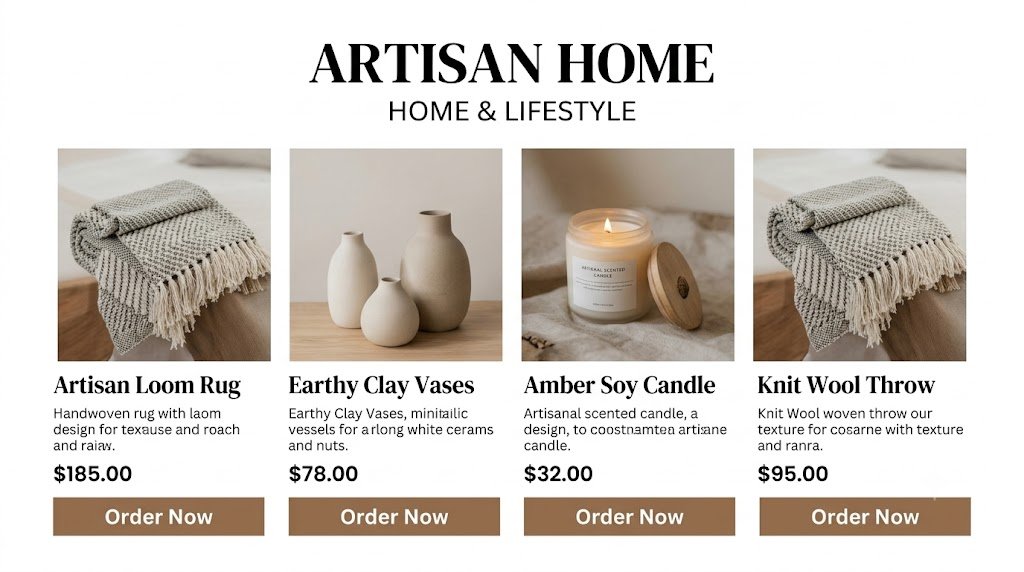
A simple product card can contain:
Product Name
Handcrafted Festive Toran
Short Description
Beautifully handcrafted décor featuring traditional detailing, designed to add warmth and elegance to festive spaces.
Product Details
Material: Fabric & Decorative Elements
Size: Available in multiple sizes
Suitable For: Diwali, Festivals & Home Décor
Price
₹XXX
Call to Action
Order Now | Enquire Today
Keep the information easy to scan.
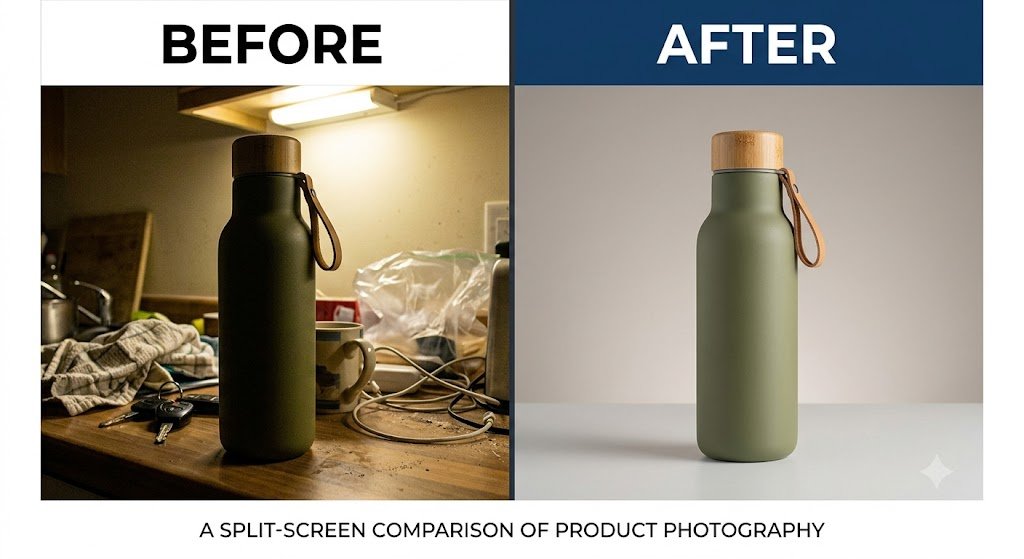
Step 7: Use High-Quality Product Images
Product photography can make or break your catalogue.
Your product images should be:
- Sharp
- Well-lit
- Properly cropped
- Consistent in size
- Free from distracting backgrounds
- Representative of the actual product
Avoid stretching images because this can make products look distorted.
Pro Tip
If you have several photos of the same product, use one main image and one or two supporting images rather than placing every photograph on the page.
Step 8: Organize Products Into Categories
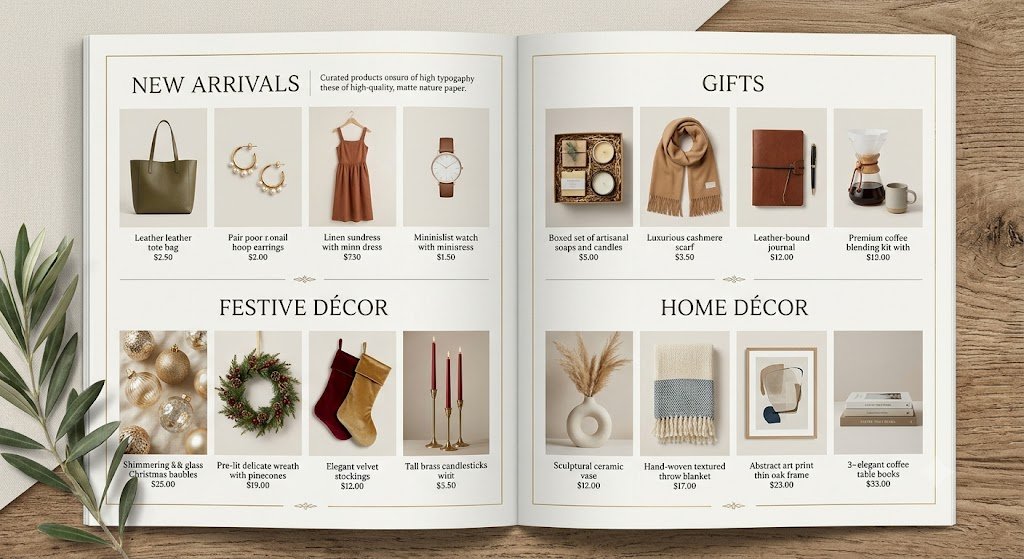
If you have many products, divide them into categories.
For example:
Festive Décor
- Torans
- Wall Hangings
- Diyas
- Rangoli Décor
Gift Collection
- Shagun Envelopes
- Gift Accessories
- Festive Gift Sets
Home Décor
- Table Décor
- Decorative Hangings
- Special Occasion Décor
Category pages make your catalogue easier to browse and help customers quickly find what they’re looking for.
Step 9: Choose Easy-to-Read Fonts
Canva offers hundreds of fonts, but you don’t need many.
Try using:
1 font for headings + 1 font for body text
For example:
Heading: Elegant serif font
Body: Clean sans-serif font
Make sure the text remains readable on both desktop and mobile devices.
Avoid decorative fonts for long paragraphs.
Step 10: Add a Strong Call to Action
Don’t let your catalogue end without telling customers what to do next.
Your final page could say:
Ready to Order?
Discover our latest collection and bring beautiful designs into your space.Visit Our Website | WhatsApp Us | Follow Us on Instagram
A clear CTA can turn catalogue views into enquiries and sales.
Step 11: Add a Contact or Order Page
Your final page should make contacting your business easy.
Include:
Website: Your Website
WhatsApp: Your Number
Email: Your Email
Instagram: @YourUsername
You can also add a QR code that takes customers directly to your website, WhatsApp chat, product page, or social media profile.
Step 12: Check Your Catalogue Before Downloading
Before publishing your catalogue, carefully check every page.
Look for:
- Spelling mistakes
- Incorrect prices
- Missing product information
- Blurry images
- Misaligned elements
- Inconsistent fonts
- Incorrect contact details
- Broken links or QR codes
- Pages with too much empty space
- Pages containing too much information
It’s a good idea to view the entire catalogue on both a computer and smartphone.
Step 13: Download Your Canva Catalogue
When your catalogue is complete, click Share → Download in Canva.
For a digital catalogue, PDF is usually a practical format.
If you’re planning to print it, choose a print-oriented PDF option and make sure your document has the appropriate dimensions and image quality.
You can then share your catalogue through:
- Website
- QR codes