
How to Fix a Slow WordPress Website
Introduction
A slow WordPress website can frustrate visitors and reduce conversions. Website speed also contributes to the overall user experience and can affect search performance.
Fortunately, many common WordPress performance issues can be diagnosed and improved without advanced programming knowledge.
Step 1: Test Website Speed
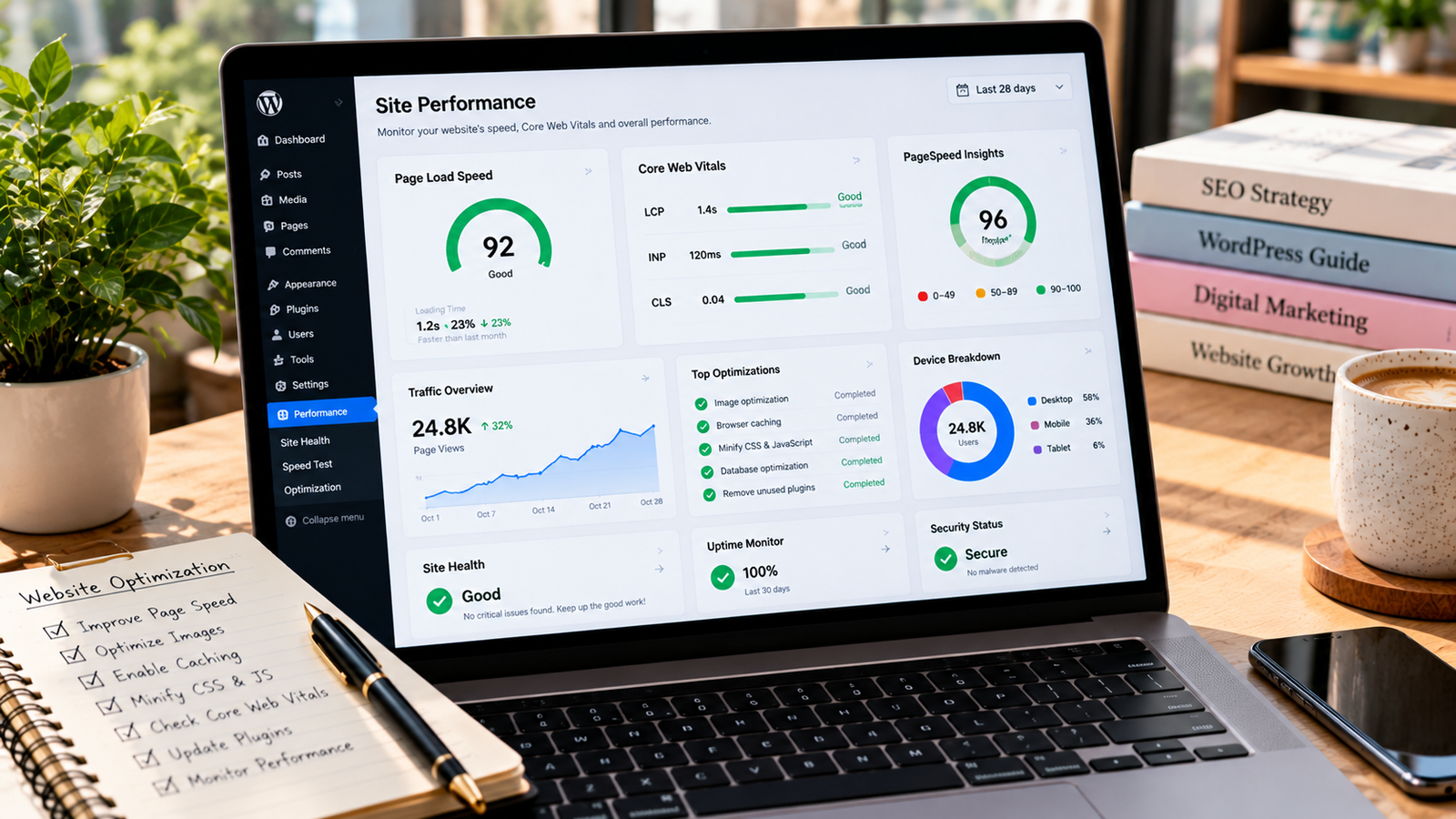
Start with Google PageSpeed Insights. Enter your website URL and review the mobile and desktop results.
Pay attention to Core Web Vitals such as Largest Contentful Paint, Interaction to Next Paint, and Cumulative Layout Shift.
Step 2: Optimize Images
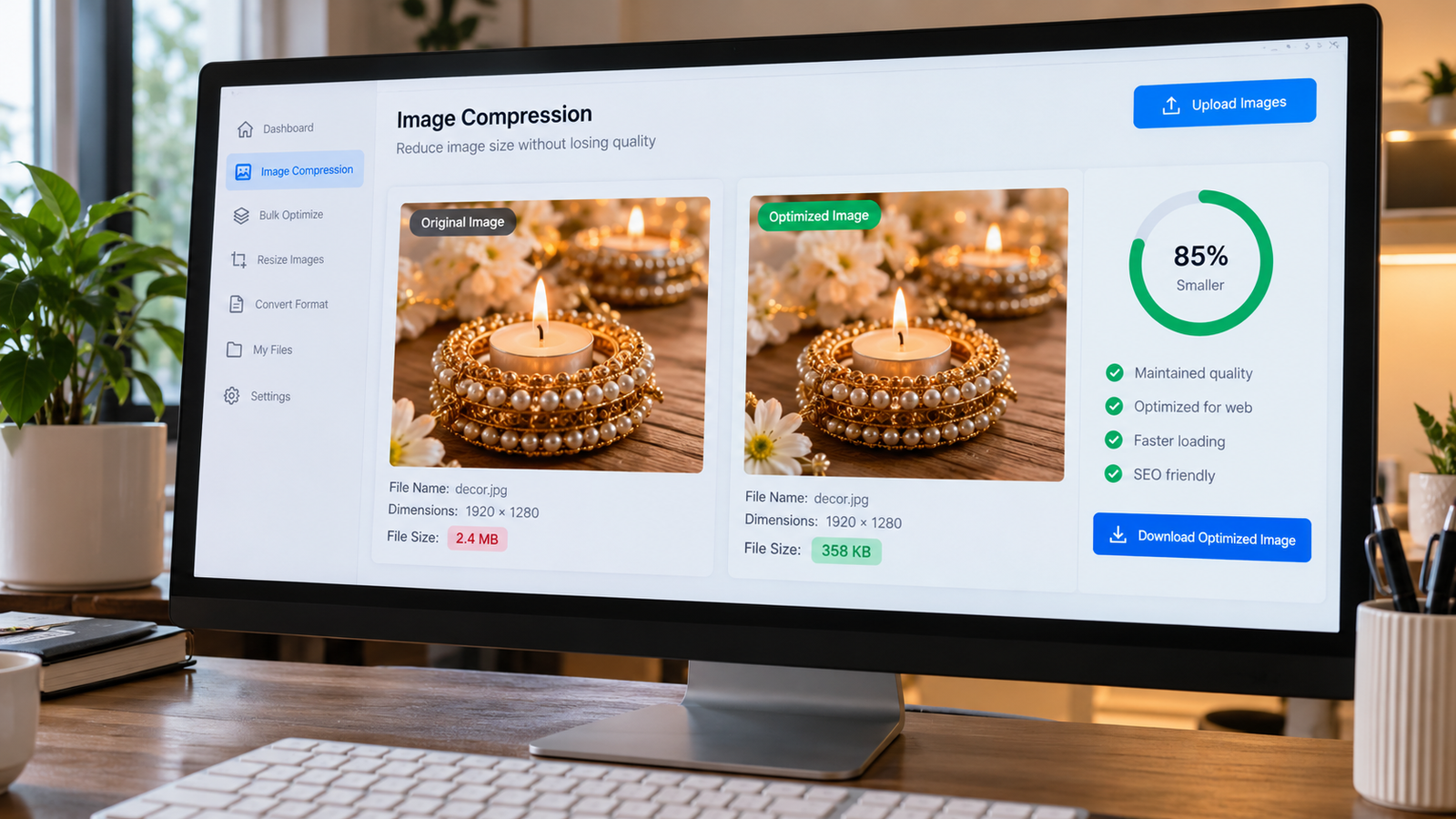
Large images can increase page loading time.
Resize images to appropriate dimensions, use modern formats such as WebP where suitable, and compress files without noticeably reducing quality.
Step 3: Remove Unnecessary Plugins
Too many poorly optimized plugins can create performance problems.
Review installed plugins and deactivate or remove those you no longer need, after checking whether they provide essential functionality.
Step 4: Enable Caching
Caching can reduce repeated server processing and improve loading times.
Use a caching solution compatible with your hosting provider. Avoid enabling multiple overlapping caching plugins without understanding their configuration.
Step 5: Review Your Hosting
Slow hosting can affect the time required for your server to respond.
Compare hosting plans based on performance, support, server resources, and expected website traffic.
Step 6: Optimize Fonts and Scripts
Reduce unnecessary scripts, limit excessive font variations, and avoid loading third-party resources that do not support important website features.
Step 7: Test Again
After making changes, rerun speed tests and check your website on mobile devices.
Always create a backup before making major performance changes.
Conclusion
WordPress speed optimization works best when you identify the actual causes of slow performance. Regular testing, efficient images, sensible plugin management, and reliable hosting can make a meaningful difference.