

How to Create a Personal Budget in Google Sheets
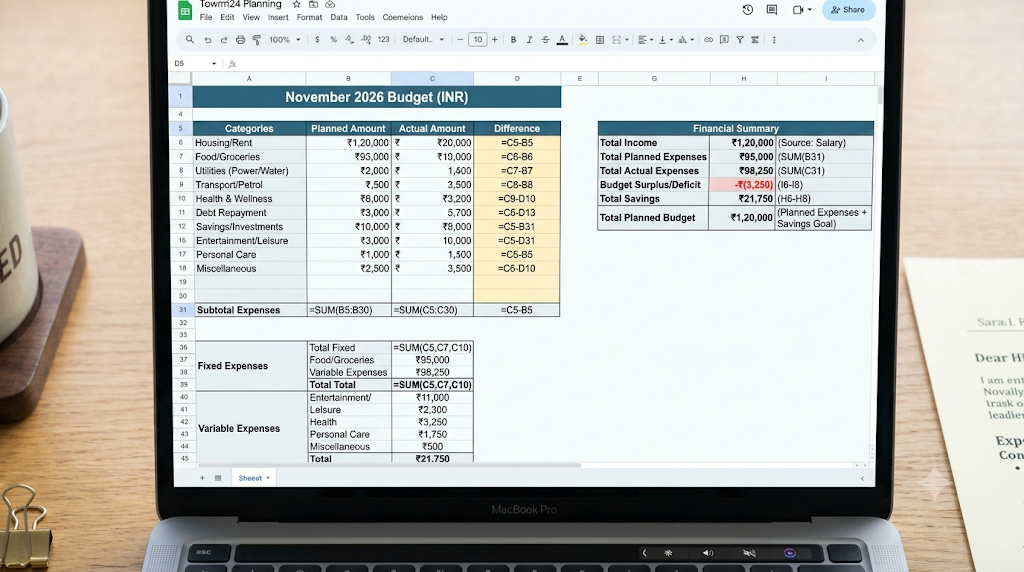
Introduction
A personal budget helps you understand how much money you earn, spend, and save.
Google Sheets can be used to build a simple budget tracker that updates calculations automatically.
Step 1: Create a New Spreadsheet
Open Google Sheets and create a blank file.
Name it “Monthly Budget Tracker.”
Step 2: Add Income Categories
Enter your income sources, such as salary, freelance earnings, or other regular income.
Step 3: List Monthly Expenses
Create categories for housing, groceries, transportation, utilities, personal spending, and savings.
Step 4: Create a Budget Table
Category | Planned | Actual |
|---|---|---|
Income | ₹30,000 | ₹30,000 |
Housing | ₹9,000 | ₹9,000 |
Groceries | ₹5,000 | ₹4,700 |
Transport | ₹3,000 | ₹2,800 |
Utilities | ₹2,000 | ₹2,100 |
Personal spending | ₹4,000 | ₹3,600 |
Savings allocation | ₹7,000 | ₹7,800 |
The amounts above are illustrative.
Step 5: Add Formulas
Use a formula to calculate total expenses:
=SUM(C3:C7)Calculate the amount remaining after expenses:
=C2-SUM(C3:C7)For the example above, the remaining amount is ₹7,800, assuming the table begins in row 1 with headings.
Step 6: Add Charts
Create a pie chart or bar chart to understand how spending is distributed.
Step 7: Compare Planned and Actual Spending
Identify categories where actual expenses exceed your budget.
Step 8: Review Monthly
Duplicate your budget template for each month and compare results over time.
Conclusion
A Google Sheets budget tracker can make financial planning more organized and transparent. Start with simple categories and formulas, then improve the spreadsheet as your needs change.
