
NotebookLM is Google’s AI research assistant that works only with the sources you upload, such as PDFs, Google Docs, websites and YouTube videos. Because answers are grounded in your own material with citations, it is excellent for studying, research projects and preparing client work.
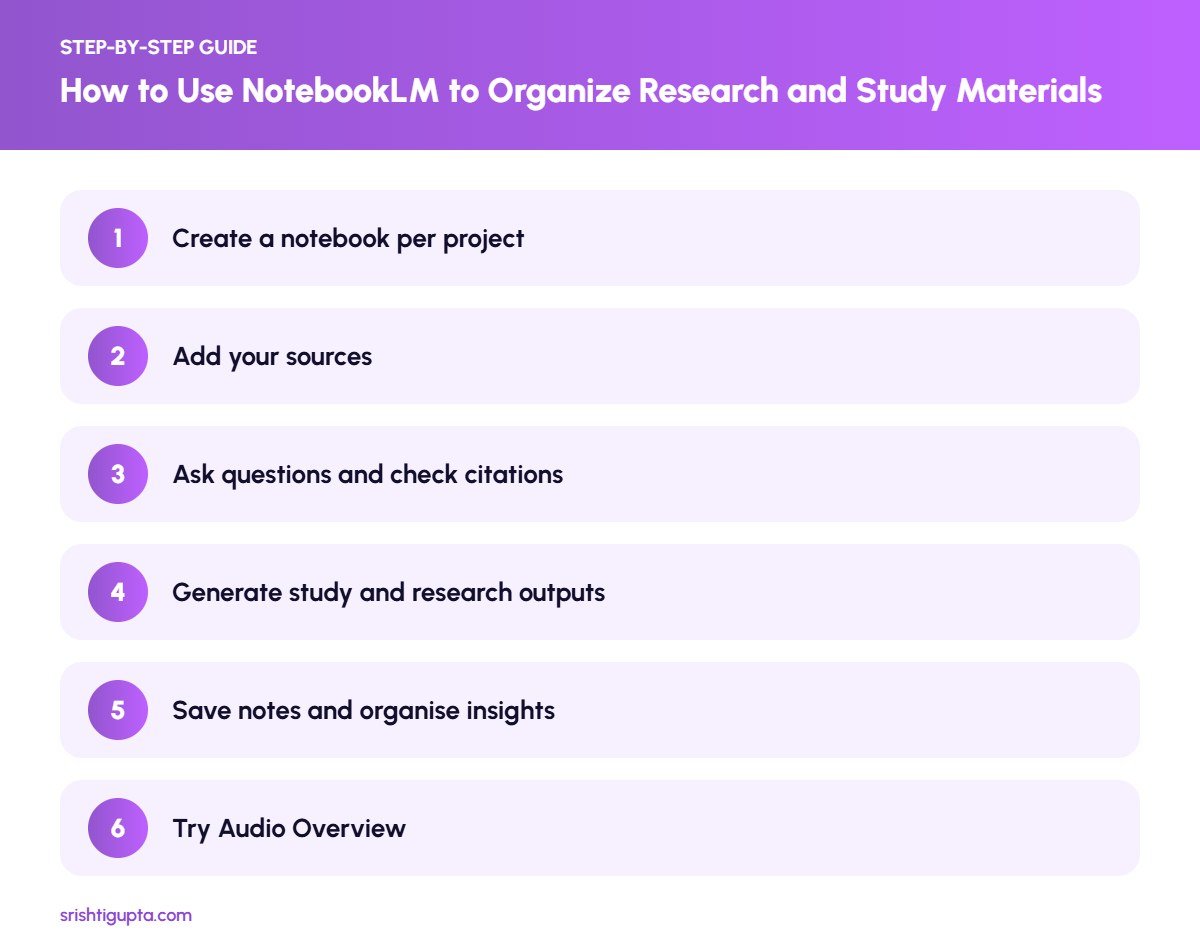
Quick answer: To use NotebookLM, create a notebook for a project, add your sources, ask questions in the chat and check the citations, generate summaries, FAQs, study guides or mind maps, save important answers as notes and use Audio Overview to listen to a discussion of your materials.
Why It Matters
Research often means switching between many documents and losing track of key points. NotebookLM keeps everything in one place and lets you query it conversationally, saving hours while reducing the risk of AI making things up because answers come from your sources.
Step-by-Step: How to Use NotebookLM to Organize Research and Study Materials
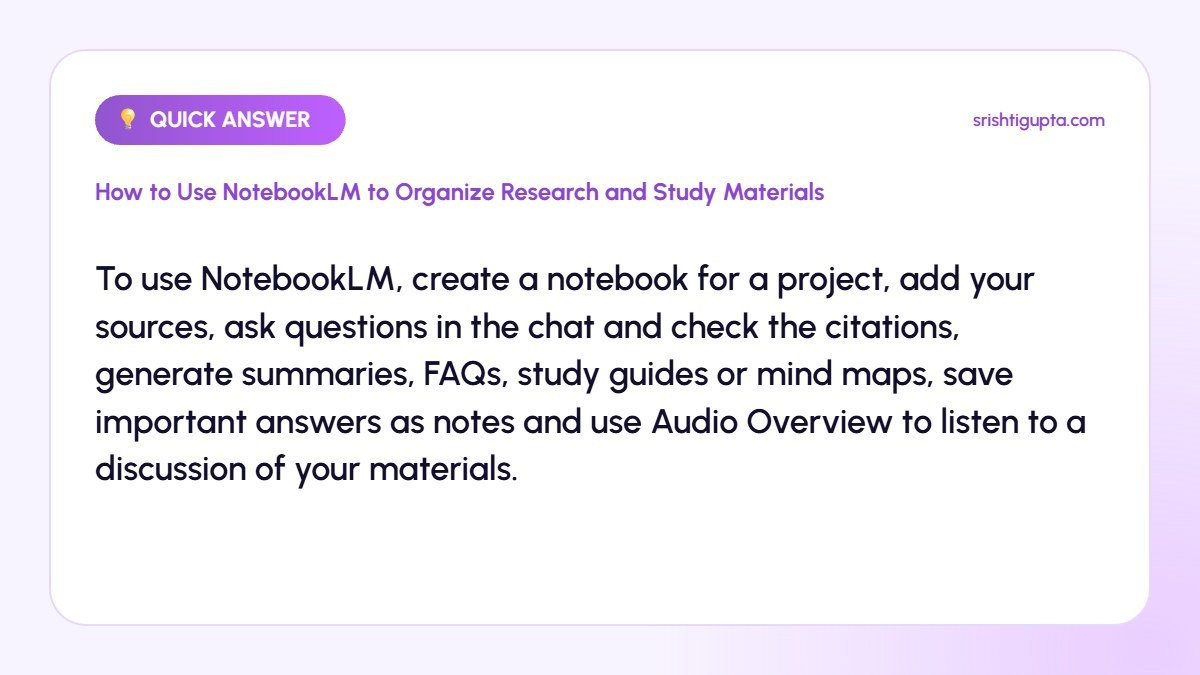
Step 1: Create a notebook per project
Open NotebookLM with your Google account and create a new notebook for one topic, course or client. Keeping projects separate gives more accurate answers.
Step 2: Add your sources
Upload PDFs, paste text, add Google Docs or Slides, website links and YouTube URLs. Choose high-quality, relevant sources because the AI only knows what you add.
Step 3: Ask questions and check citations
Ask specific questions like “What are the main recommendations?” Each answer includes numbered citations that jump to the exact passage, so you can verify quickly.
Step 4: Generate study and research outputs
Use built-in options to create briefing documents, FAQs, timelines, study guides or mind maps that summarise all your sources.
Step 5: Save notes and organise insights
Pin useful answers as notes, add your own thoughts and combine notes into outlines for reports, blog posts or presentations.
Step 6: Try Audio Overview
Generate an Audio Overview to hear two AI hosts discuss your sources. It is a convenient way to review material while commuting or exercising.
Pro Tips
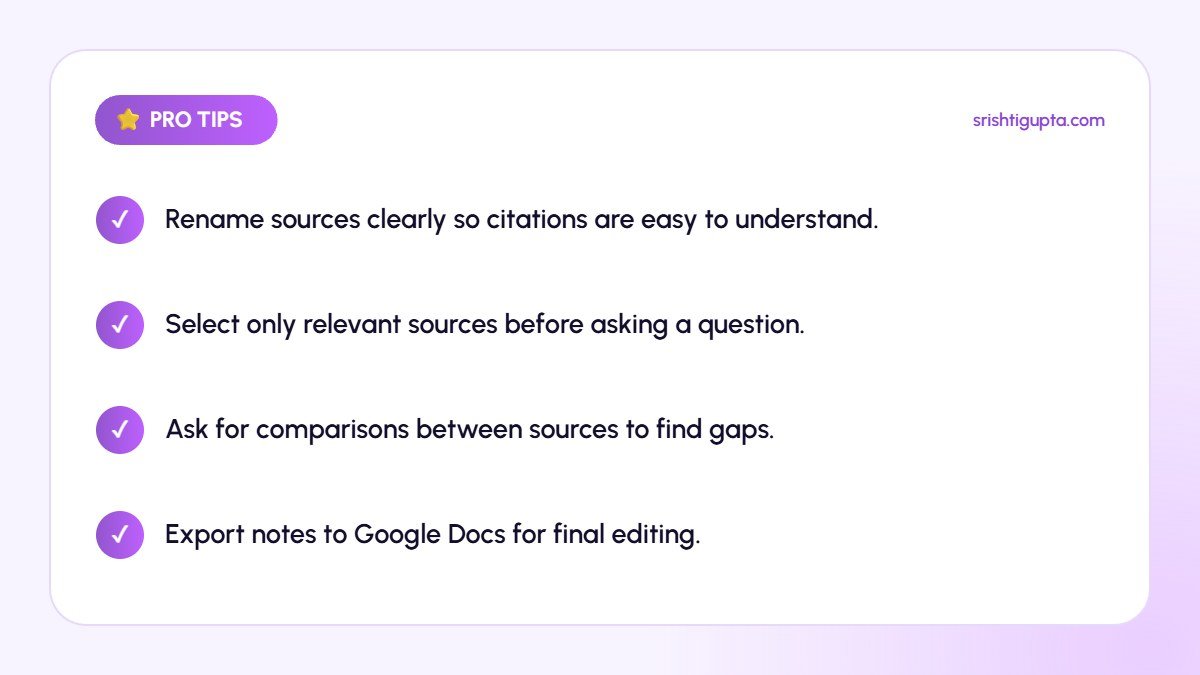
- Rename sources clearly so citations are easy to understand.
- Select only relevant sources before asking a question.
- Ask for comparisons between sources to find gaps.
- Export notes to Google Docs for final editing.
Common Mistakes to Avoid
- Adding unrelated documents to one notebook.
- Assuming answers are correct without reading citations.
- Uploading confidential data without checking company policy.
- Using it as a replacement for reading key sources.
Frequently Asked Questions
Is NotebookLM free?
NotebookLM has a free version with generous limits, and higher limits are available through Google’s paid AI plans.
What types of sources can NotebookLM use?
It supports PDFs, Google Docs and Slides, text, website URLs, YouTube videos and audio files, with limits on the number of sources per notebook.
How is NotebookLM different from ChatGPT?
NotebookLM answers mainly from the sources you upload and cites them, while general chatbots draw on broad training data and web access.
Final Thoughts
NotebookLM is a powerful way to turn a pile of documents into organised knowledge. Build focused notebooks, ask good questions and verify citations, and your research and study sessions will become faster and more effective.
Need expert help? Srishti Gupta is a digital marketing expert in Ludhiana. Explore her AI-powered digital marketing or get in touch to discuss your project.