

Gamma is an AI tool that turns a short prompt or document into a complete presentation, document or web page in minutes. It is ideal for pitch decks, client proposals, training material and reports when you need a polished result without spending hours on slide design.
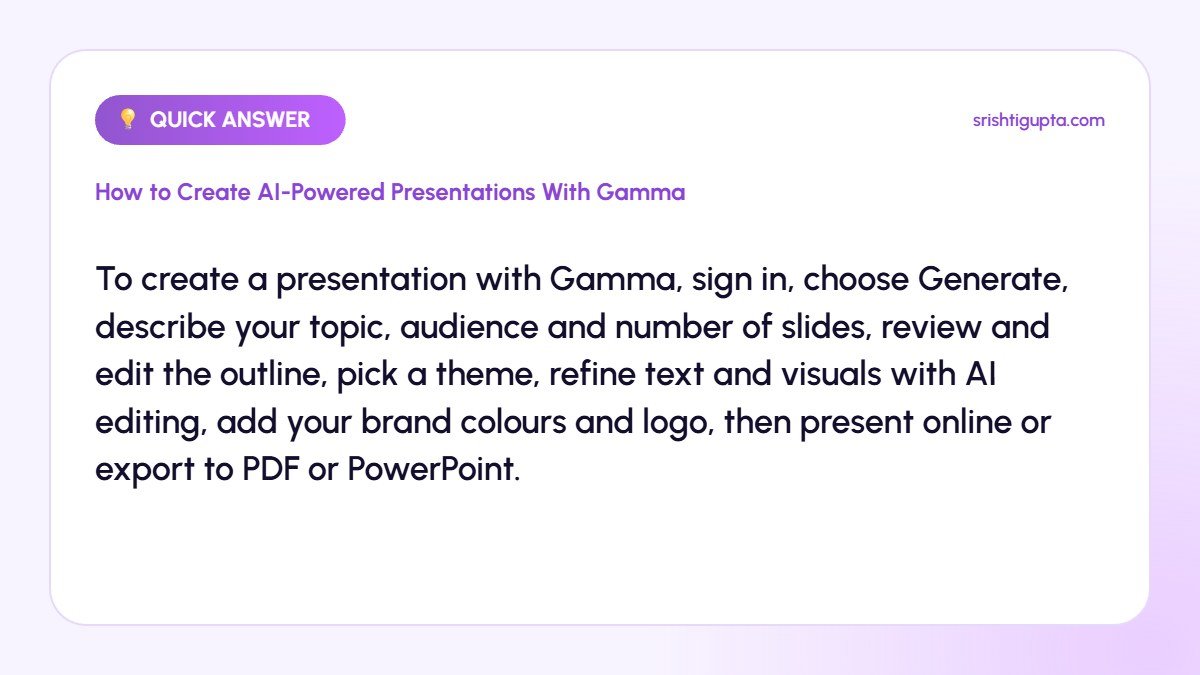
Quick answer: To create a presentation with Gamma, sign in, choose Generate, describe your topic, audience and number of slides, review and edit the outline, pick a theme, refine text and visuals with AI editing, add your brand colours and logo, then present online or export to PDF or PowerPoint.
Why It Matters
Designing slides manually takes time that could be spent on the message itself. Gamma handles layout and formatting automatically, so you can focus on structure and content, iterate faster and produce consistent, modern-looking decks even without design skills.
Step-by-Step: How to Create AI-Powered Presentations With Gamma
Step 1: Start with a clear prompt
Choose Generate and describe the topic, goal, audience and tone, for example a 10-slide proposal for SEO services aimed at small business owners. Clear context produces a better first draft.
Step 2: Edit the outline before generating
Gamma shows an outline of slide titles. Reorder, rename or delete sections so the story flows logically, then generate the full presentation.
Step 3: Choose and customise a theme
Select a theme that suits your brand, then adjust fonts, colours and logo in theme settings. Creating a custom theme saves time for future decks.
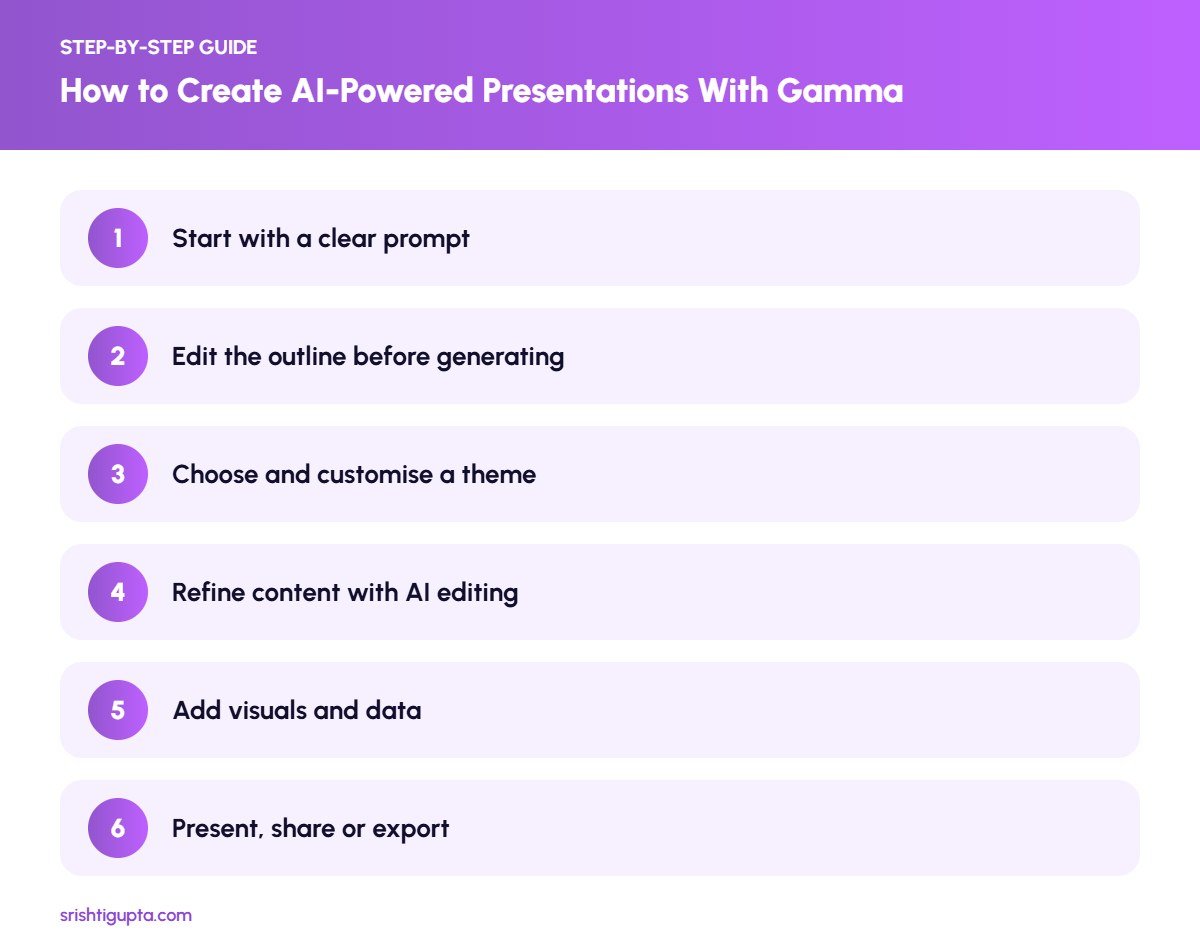
Step 4: Refine content with AI editing
Use the AI edit option to shorten text, change tone, add examples, split a slide or turn text into a list, timeline or comparison layout.
Step 5: Add visuals and data
Insert images, icons, charts, embedded videos or website links. Replace generic AI images with your own photos, screenshots or brand visuals where possible.
Step 6: Present, share or export
Present directly from Gamma, share a link with view analytics, or export to PDF or PowerPoint when the client needs an offline file. Check formatting after export.
Pro Tips
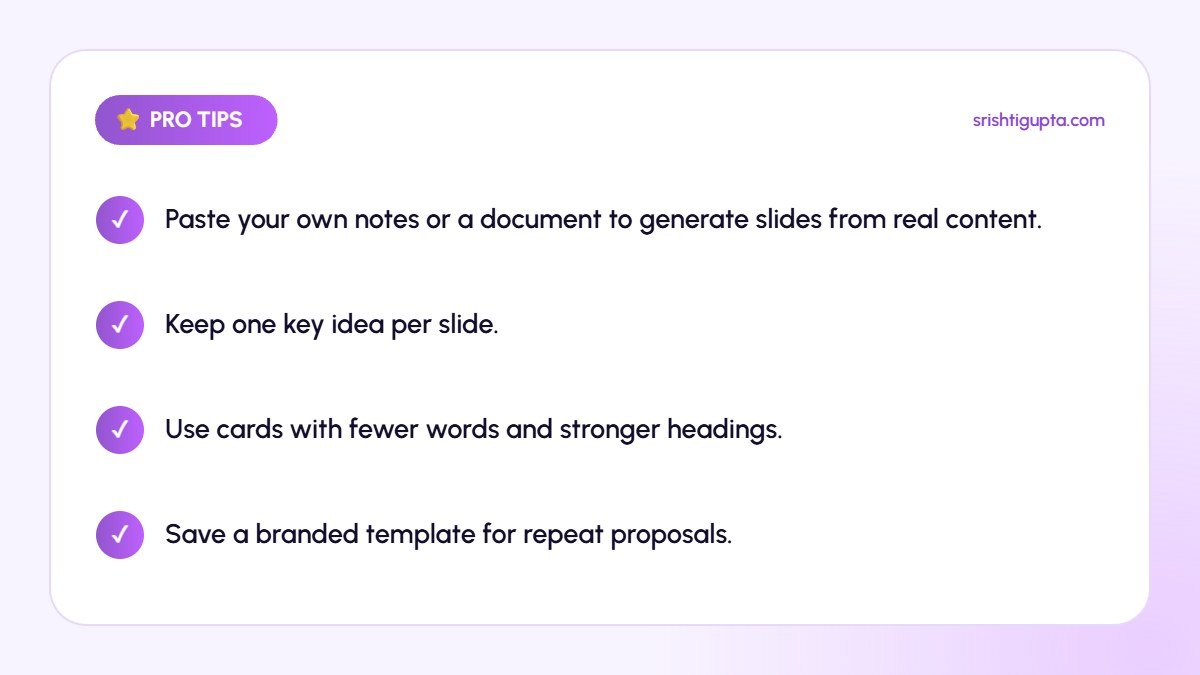
- Paste your own notes or a document to generate slides from real content.
- Keep one key idea per slide.
- Use cards with fewer words and stronger headings.
- Save a branded template for repeat proposals.
Common Mistakes to Avoid
- Using AI-generated content without fact-checking.
- Leaving default images that do not match your brand.
- Overloading slides with long paragraphs.
- Not reviewing the exported PowerPoint formatting.
Frequently Asked Questions
Is Gamma free to use?
Gamma offers a free plan with limited AI credits and paid plans with more credits, custom branding and advanced export options.
Can I export Gamma presentations to PowerPoint?
Yes. Gamma supports exporting to PowerPoint and PDF, though some layouts may need small adjustments after export.
Is Gamma good for client proposals?
Yes. It creates clean, professional proposals quickly, and shareable links let you see when clients view your deck.
Final Thoughts
Gamma makes it easy to turn ideas into professional presentations in minutes. Give it a clear brief, edit the story carefully and add your own branding, and you will have decks that look polished and communicate clearly.
Need expert help? Srishti Gupta is a digital marketing expert in Ludhiana. Explore her AI-powered digital marketing or get in touch to discuss your project.