
Form submissions are often the most important conversions on a business website. Google Tag Manager lets you track them without editing your website code, and send the data to Google Analytics 4, Google Ads and Meta for better reporting and optimisation.
Quick answer: To track form submissions with Google Tag Manager, enable built-in form variables, use a Form Submission trigger, a thank-you page view trigger or a custom event pushed by your form plugin, create a GA4 event tag such as generate_lead, test in preview mode and publish.
Why It Matters
Without form tracking you cannot see which channels and pages generate leads. Accurate form data lets you calculate cost per lead, optimise ad campaigns and improve the pages that convert best.
Step-by-Step: How to Track Form Submissions Using Google Tag Manager
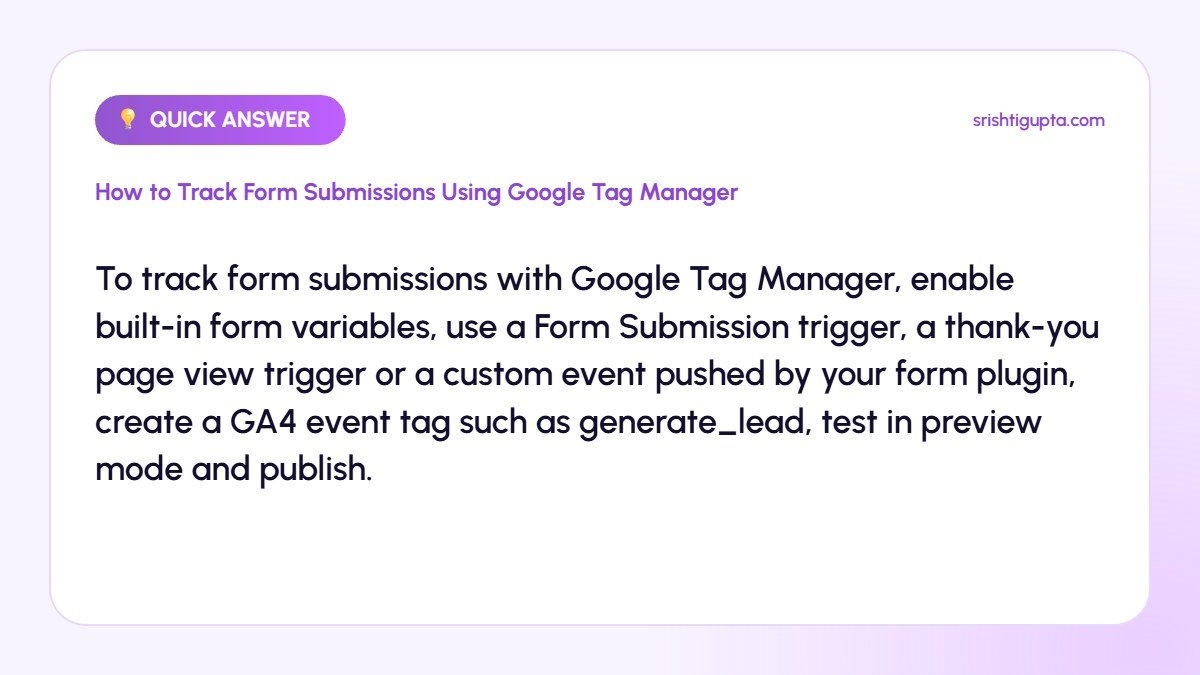
Step 1: Identify how your form works
Submit a test entry and note what happens: does the page redirect to a thank-you page, show a success message or load via AJAX? The behaviour decides which tracking method is most reliable.
Step 2: Enable form variables in GTM
In Tag Manager go to Variables, Configure, and enable Form ID, Form Classes, Form Element and Form URL. These help you target the right form.
Step 3: Choose the right trigger
If there is a thank-you page, use a Page View trigger on that URL. For standard forms try the Form Submission trigger with Check Validation enabled. For AJAX forms such as Contact Form 7, listen for its success event and push a dataLayer event.
Step 4: Create the GA4 event tag
Add a Google Analytics: GA4 Event tag, use the event name generate_lead and add parameters like form_name and page_location. Attach your chosen trigger.
Step 5: Test in preview mode
Open GTM preview, submit the form and confirm the tag fires only after a successful submission, not on failed validation. Check GA4 DebugView for the event.
Step 6: Publish and mark as a key event
Publish the container, then mark generate_lead as a key event in GA4. Import it into Google Ads if you run campaigns.
Pro Tips
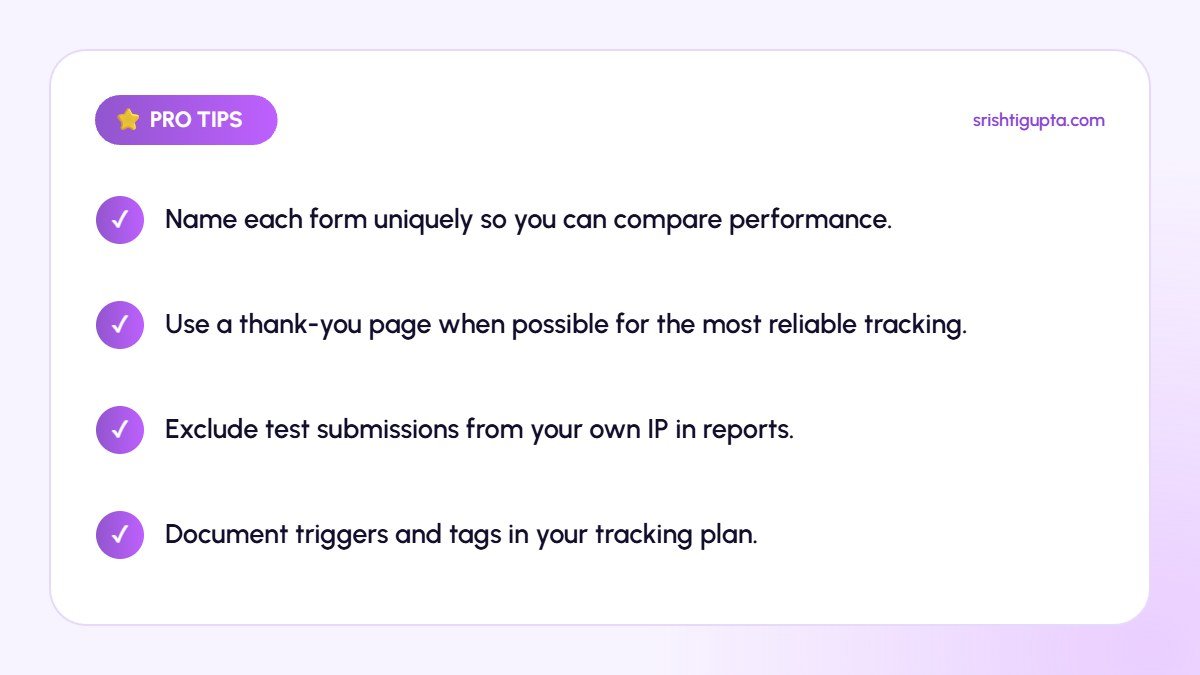
- Name each form uniquely so you can compare performance.
- Use a thank-you page when possible for the most reliable tracking.
- Exclude test submissions from your own IP in reports.
- Document triggers and tags in your tracking plan.
Common Mistakes to Avoid
- Tracking button clicks instead of successful submissions.
- Firing the event twice due to multiple triggers.
- Not testing failed submissions.
- Forgetting to publish the GTM container.
Frequently Asked Questions
Why is the Form Submission trigger not working?
Many modern forms submit using JavaScript without a standard submit event. In that case use the form plugin’s success event, an element visibility trigger on the success message or a thank-you page.
How do I track Contact Form 7 submissions?
Listen for the wpcf7mailsent event with a small custom HTML tag that pushes a dataLayer event, then trigger your GA4 tag on that event.
Can I send form conversions to Google Ads too?
Yes. Add a Google Ads conversion tag using the same trigger, or import the GA4 key event into Google Ads.
Final Thoughts
Tracking form submissions correctly is the foundation of lead measurement. Choose the method that fits your form, test carefully and connect the data to GA4 and your ad platforms so every lead is counted.
Need expert help? Srishti Gupta is a digital marketing expert in Ludhiana. Explore her performance marketing or get in touch to discuss your project.